4000.0000→4,000.00 EURAmounts are formatted consistently in the work item and the email, whatever the currency.
How it is configured
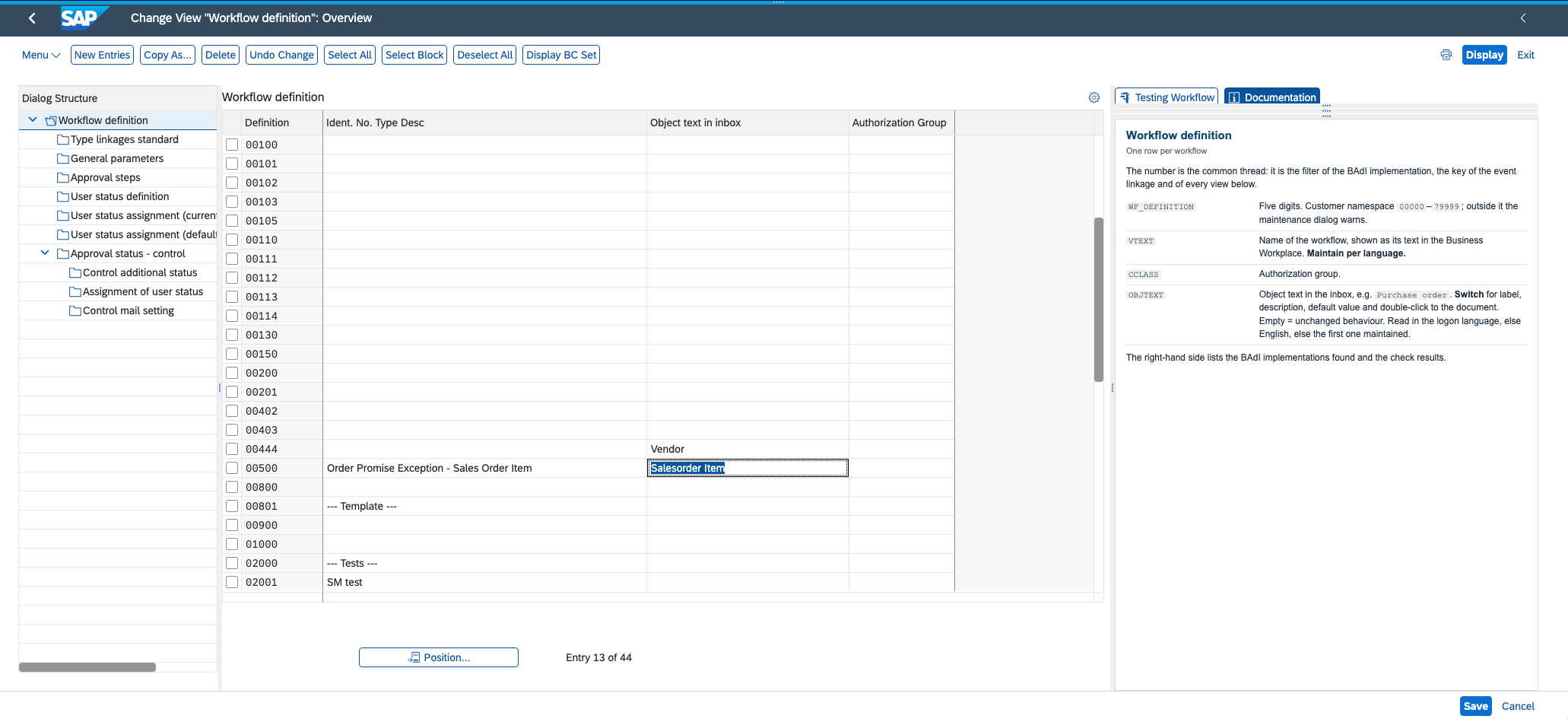
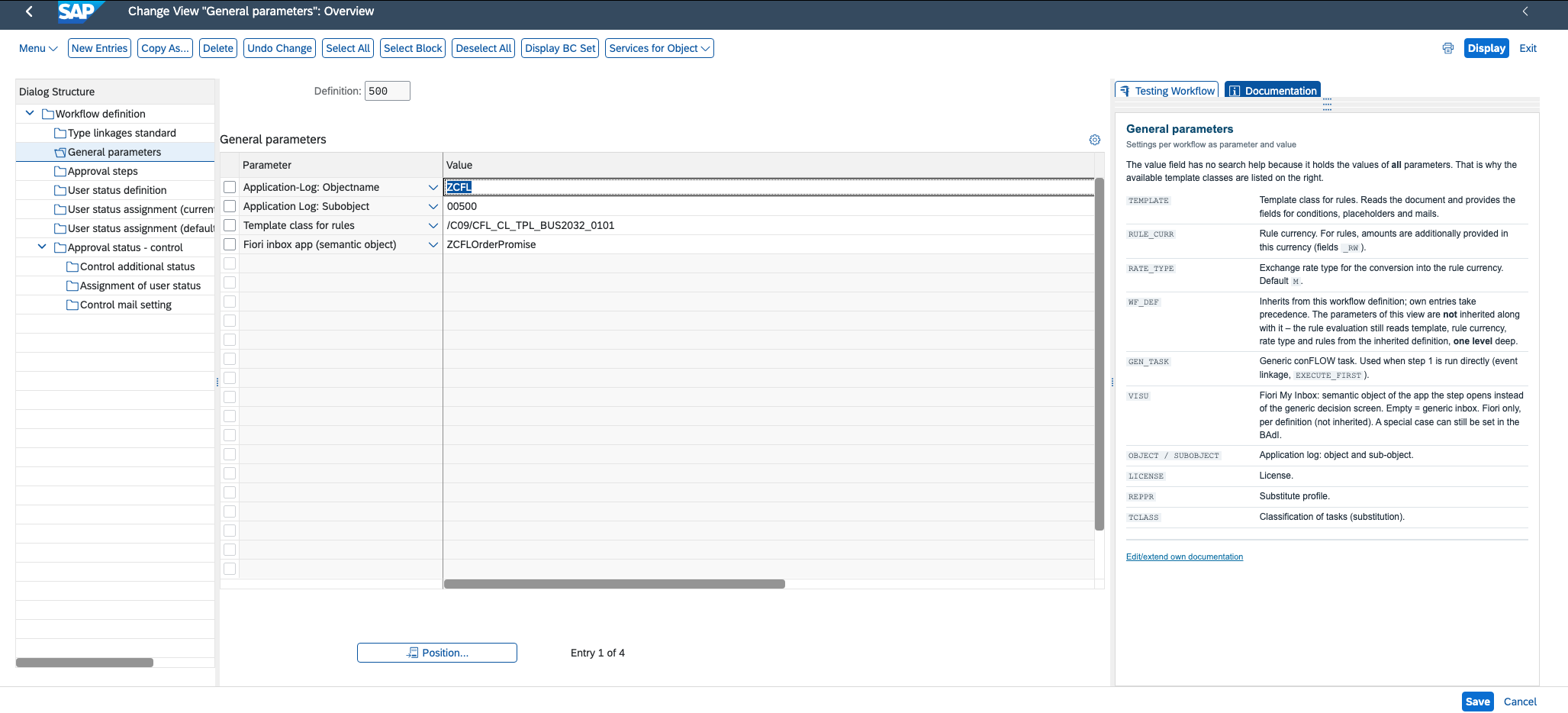
One line connects the workflow to the document
1Which document is read, here sales orders
2The documentation lists the fields that become available
The template at work
Document data in the title, without a line of code
Until now, adding document data to a title required custom code. Now the template provides the fields, and the step text only needs the placeholder.
The vendor template delivers
vendor_nonamecitycountrycreated_onpmnt_blockand 20 more
In the step text
Approve from Marketing §{vendor_no} - §{name}
What the approver sees
Approve from Marketing 1000060 - Muster GmbH
Your own document types
Your own template is quick to build
For object types not provided as standard, or when additional fields are required. Unlike Flexible Workflow, there is no separate scenario to create – just a small class.
Way 1
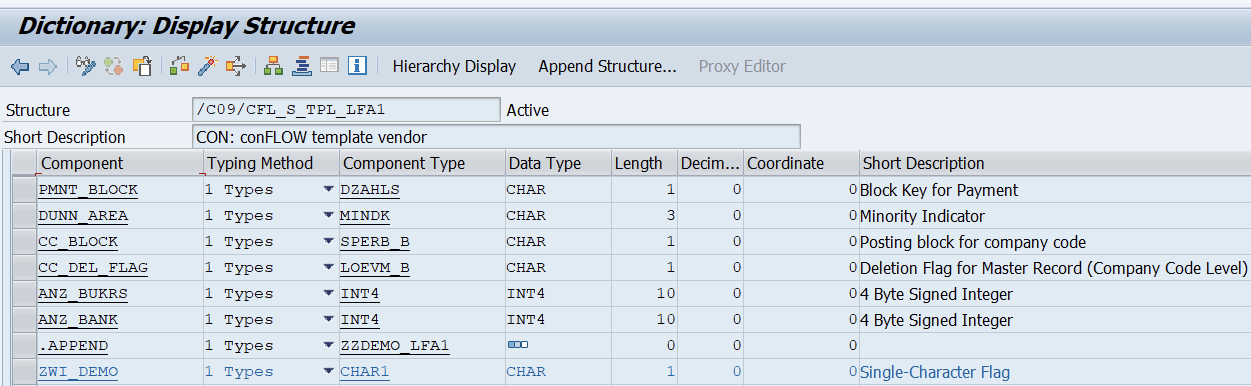
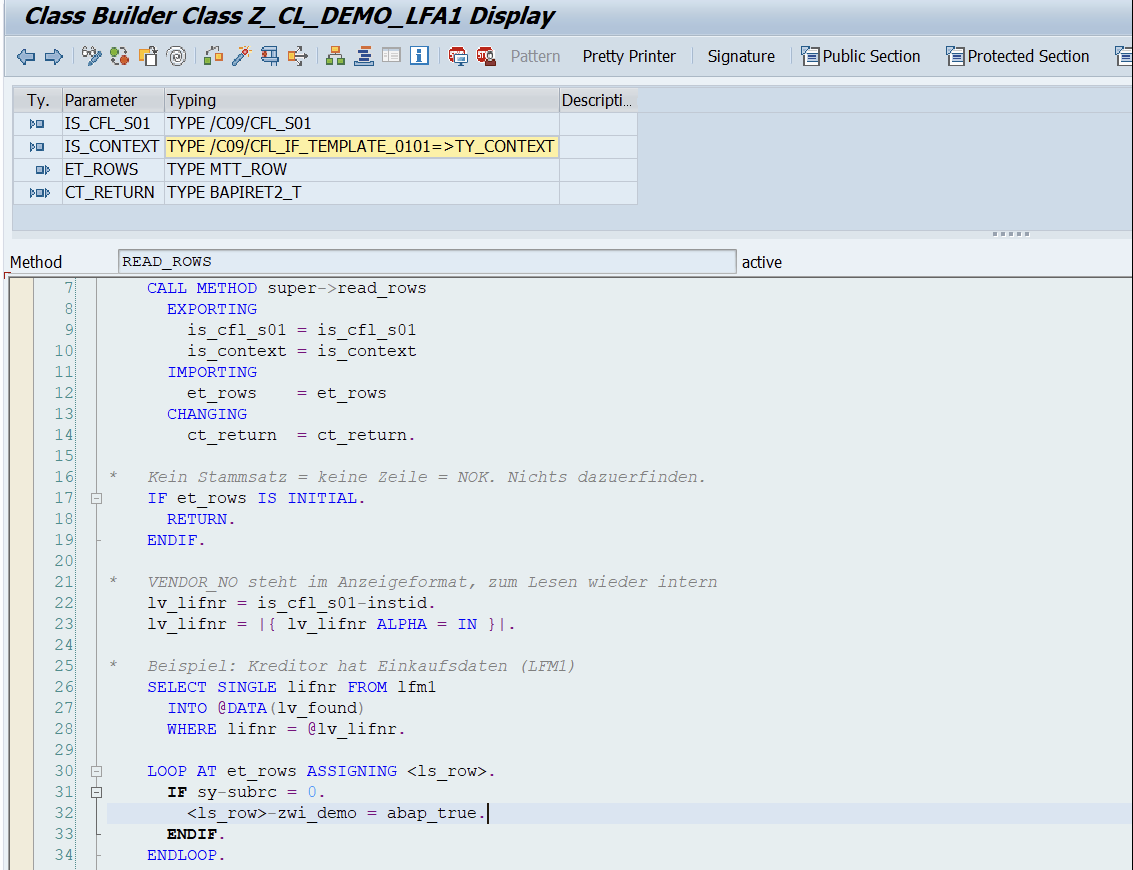
Extend a shipped templateAppend the field to the template structure, inherit from the class, redefine one method. The new field is immediately available for title, rules and email.
Way 2
Build your own templateUse the template class and define your own fields. That way every object type gets its template, including your own Z objects.
What way 1 looks like
One field added, one method redefined
1The new field, appended to the structure
2First the shipped template reads the document
3Then your own class fills its field
That is all it takesEnter the class as the template in the configuration. The new field appears in the field list and is ready for placeholders, rules and email.
Way 2
Same principle for an object type of your own: use the template class and define your own fields.
How it is configured
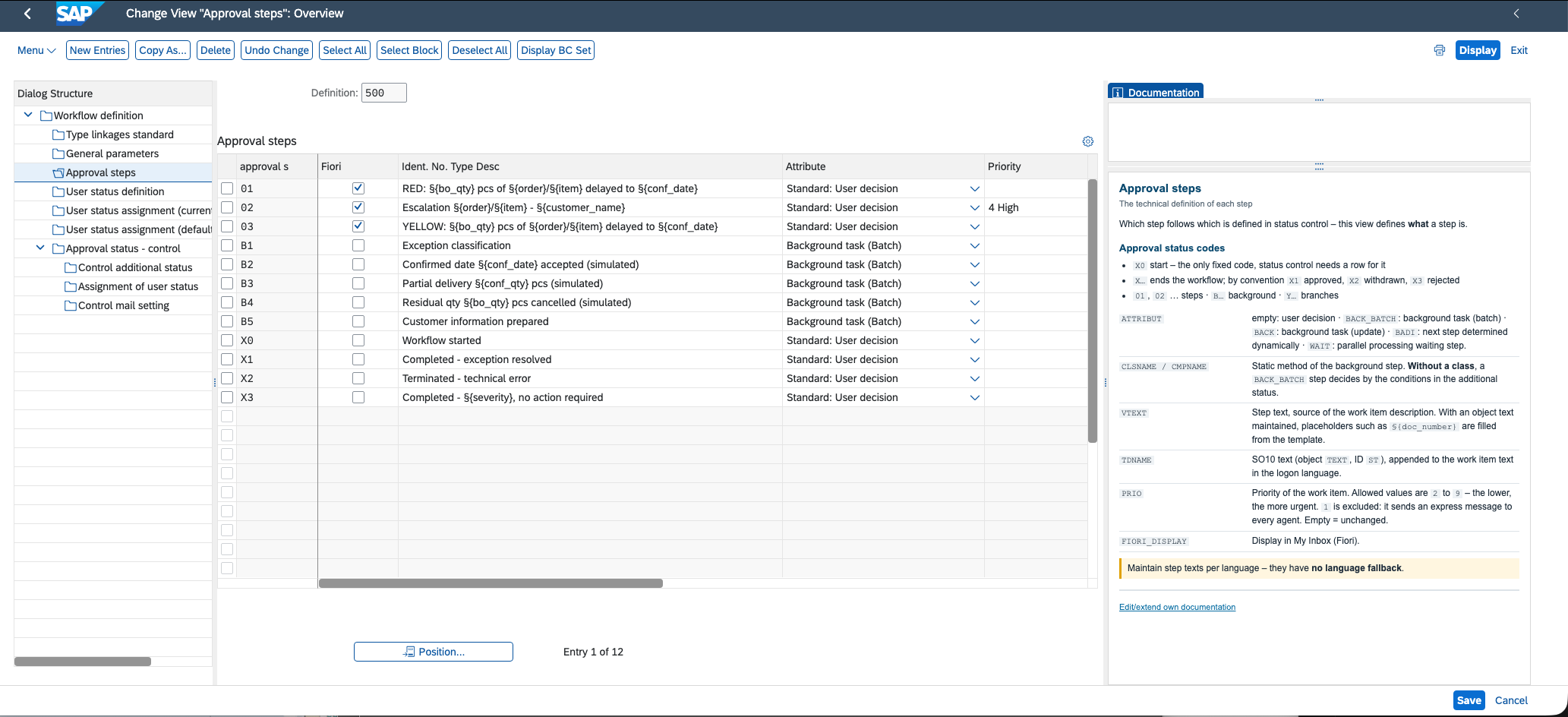
New at the step: the priority
1The step text already existed – now it can use template fields
2New: the priority, here ‘4 High’
3The documentation explains both
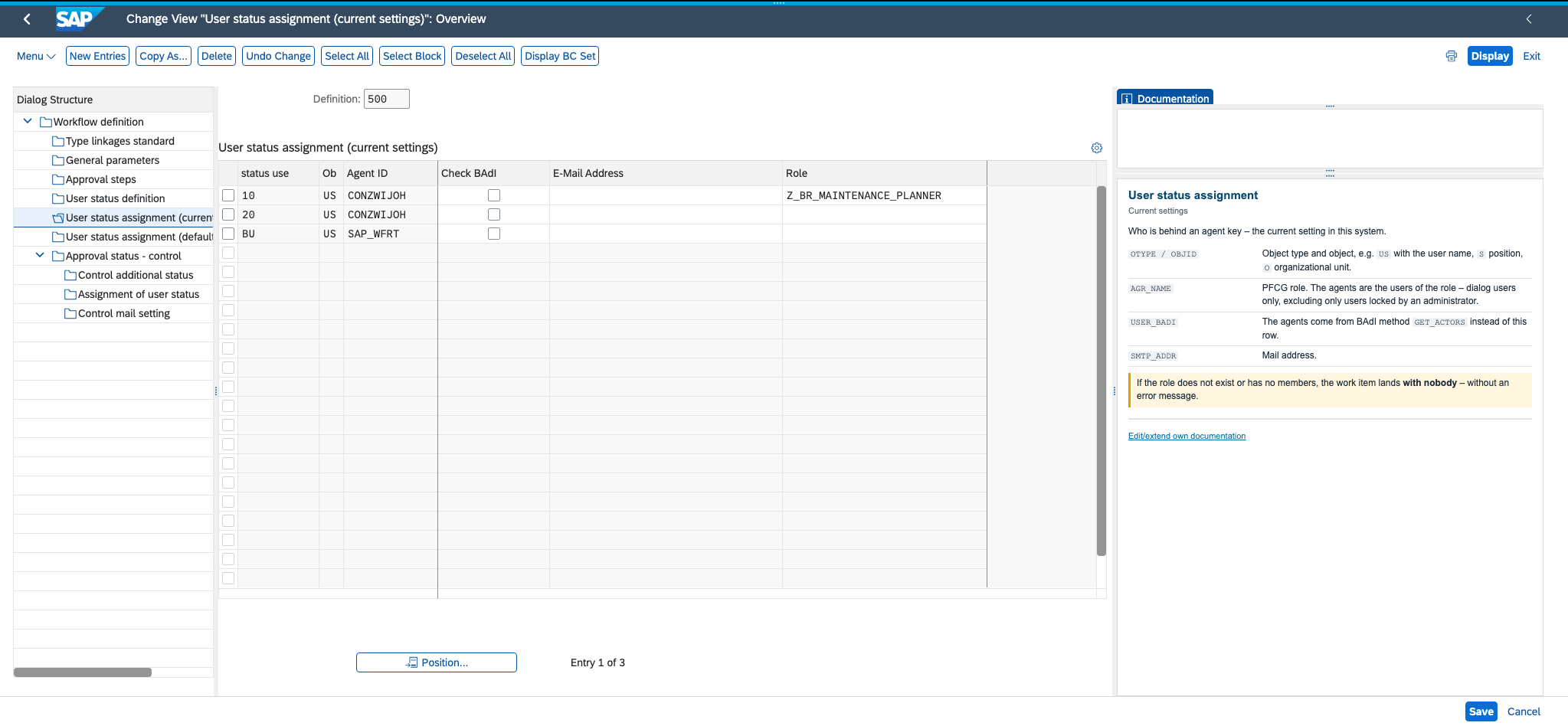
Agents
Org model or authorisation role
1As before: user, position or organisational unit
2New: a role – its users decide
3The documentation says who counts
The four-eyes principle
Requesters do not approve their own orders
One checkbox removes people from the list of agents. That used to require a BAdI implementation; now one entry is enough.
If a query or correction returns to the same stage, the rule still holds: nobody decides at two different stages. If no eligible agent remains, nobody receives the work item. The exclusion applies to the emails as well.
Purchasing checks
+
Role Purchasingall users of the role
−
Whoever started the workflowthe requester
excluded
Plant management approves
+
Role Plant managementall users of the role
−
Whoever already decided another stagenew: approvers of the other stages of this workflow
excluded
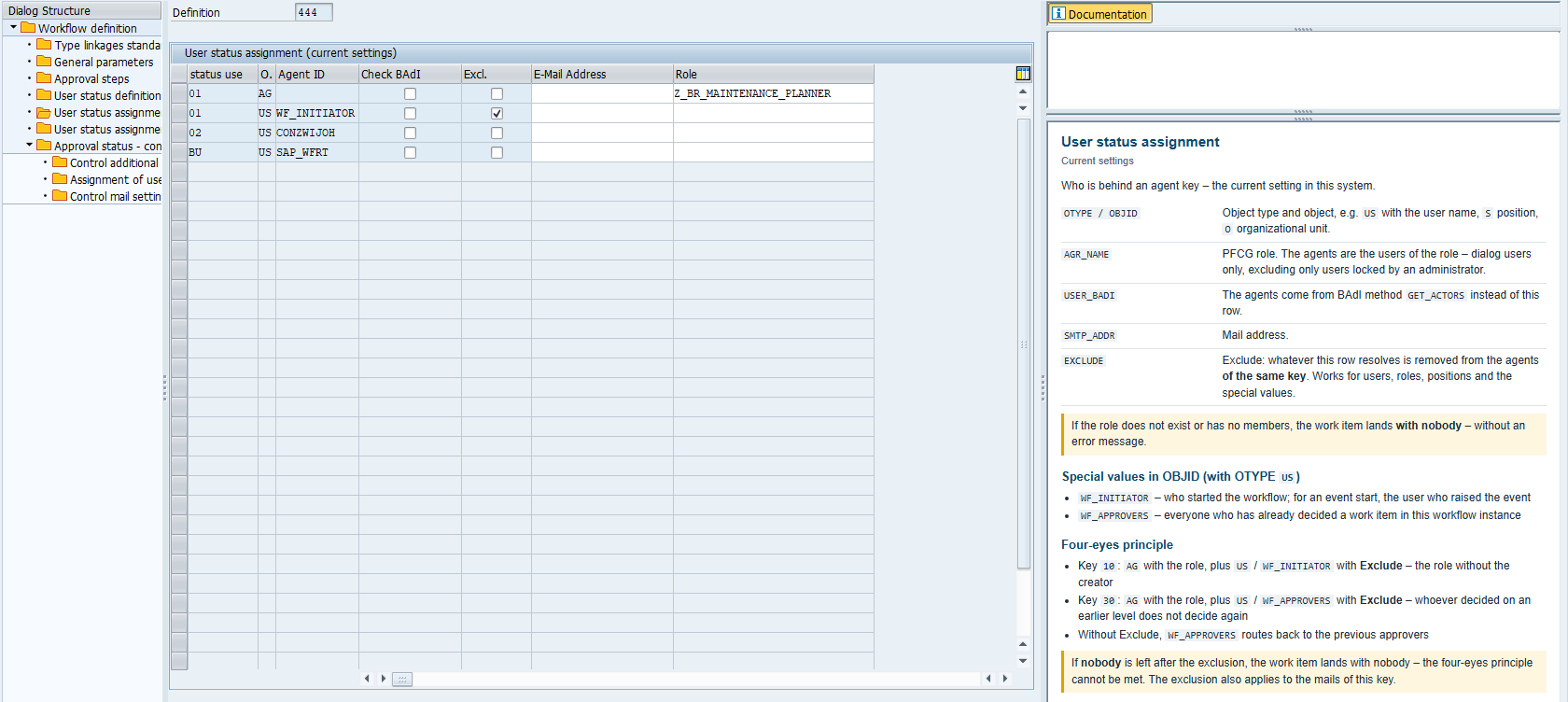
How it is configured
One checkbox per agent line
1New: exclude whoever this line resolves to
2The initiator, and anyone who decided another stage
3The four-eyes principle, written up in the documentation
The rule
Simple cases take care of themselves
You configure the threshold on a field provided by the template. The log shows why the workflow took this path.
If the rule grows into a full decision table, a background step can evaluate it in BRFplus, for example.
Order value above 1,000?
Yesa person decides
Nodone, with nobody involved
How it is configured
Per outcome: one condition and one target
1Where it goes next
2The condition, here the value above or below 1,000
3Hints in the documentation, and a suggested correction for a typo
The decision
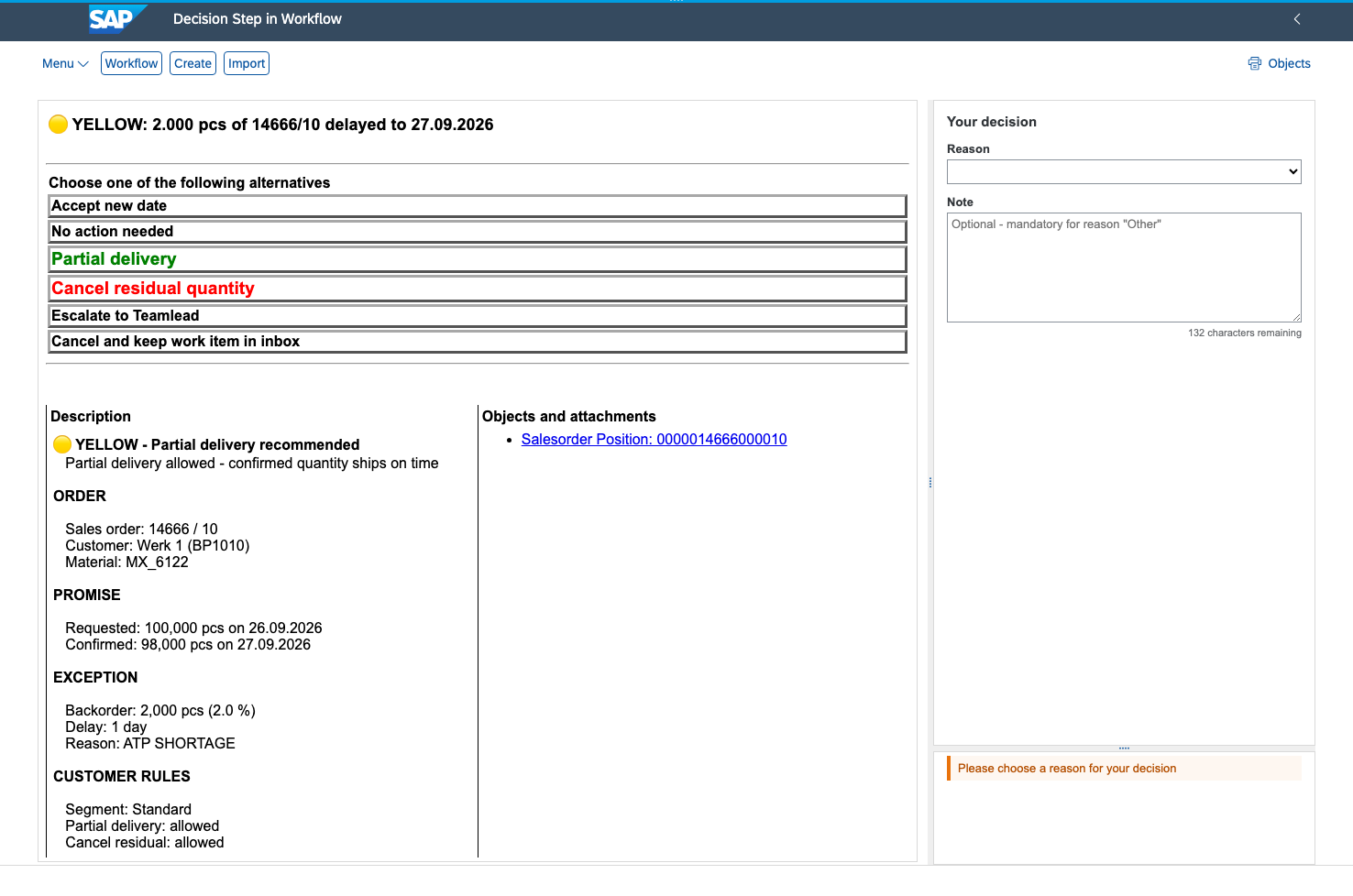
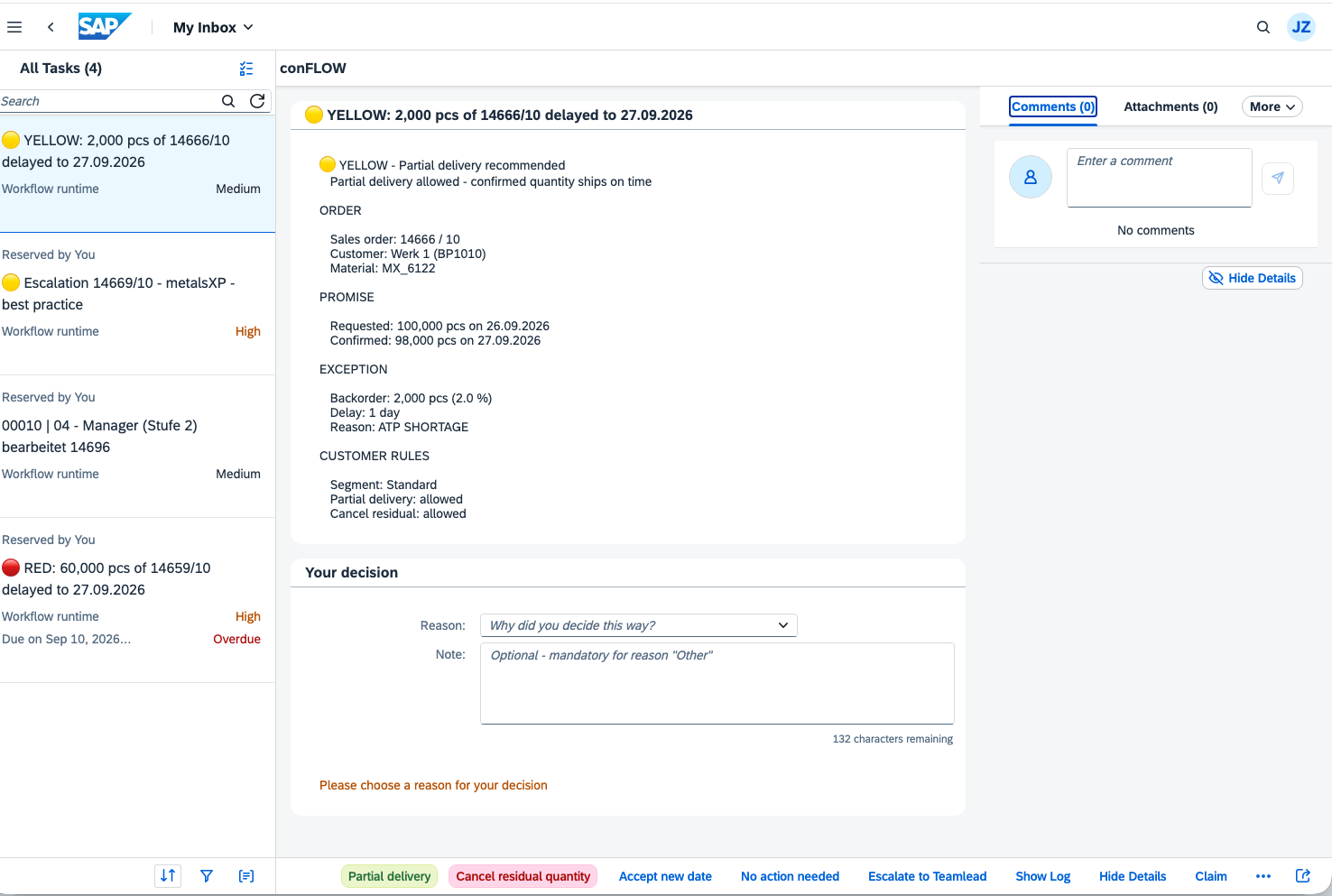
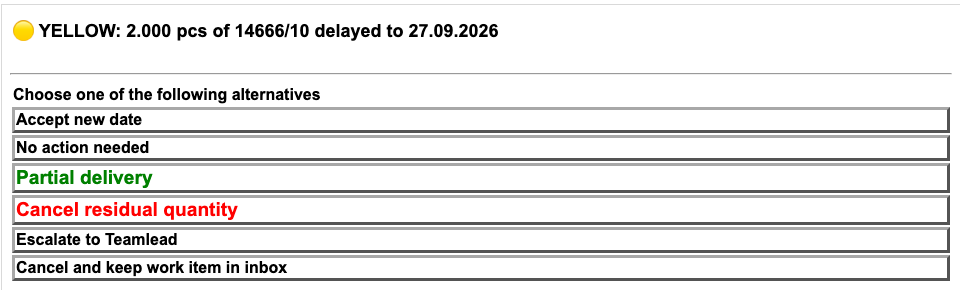
Green means yes Red means no
The decisions that matter stand out. Where it is needed, conFLOW asks for a reason – in SAP GUI just as in Fiori.
SAP GUI
Fiori My Inbox · click to enlarge
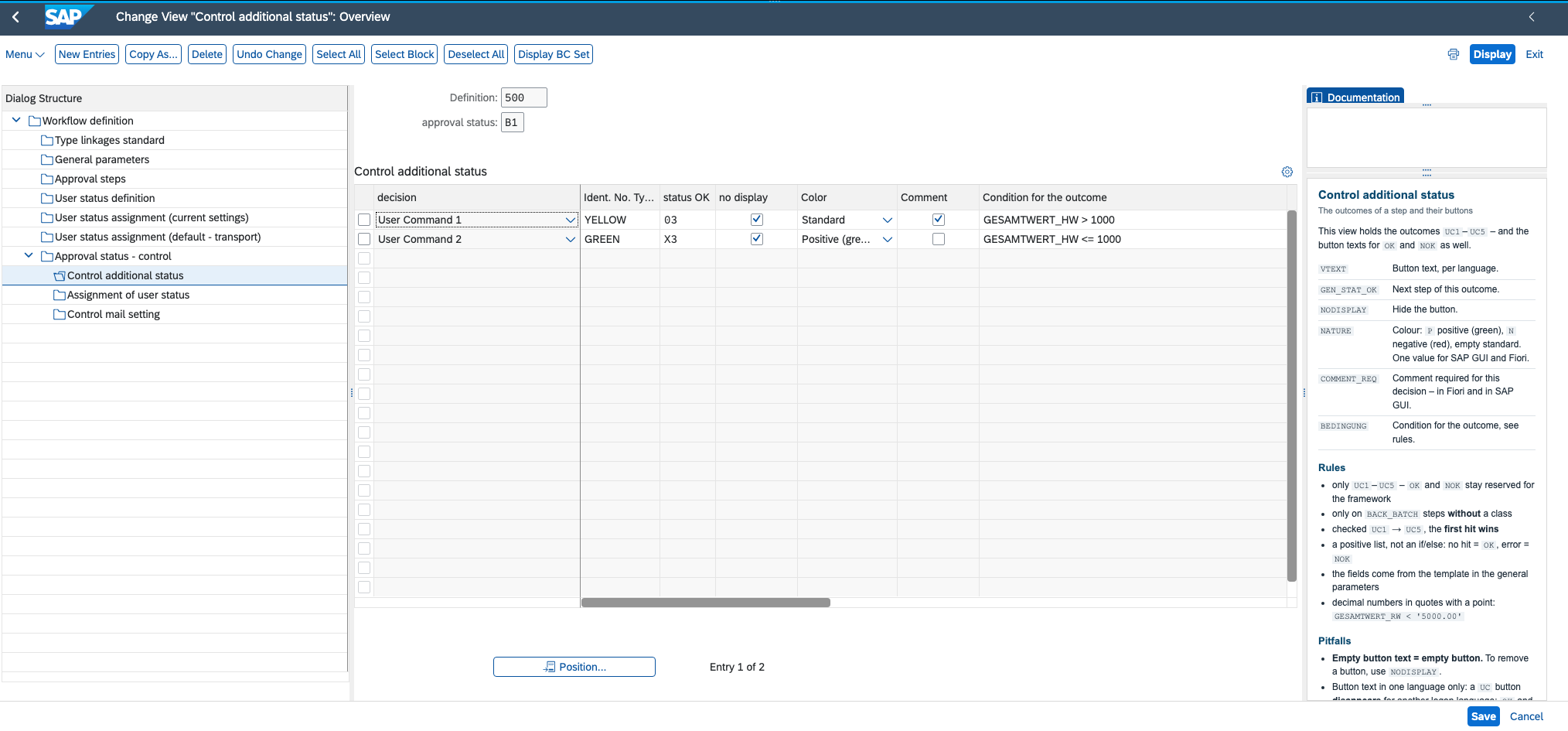
How it is configured
Colour and mandatory reason, per button
1Colour and mandatory comment
2Applies to SAP GUI and Fiori alike
Input at the work item
The approver adds what only they know
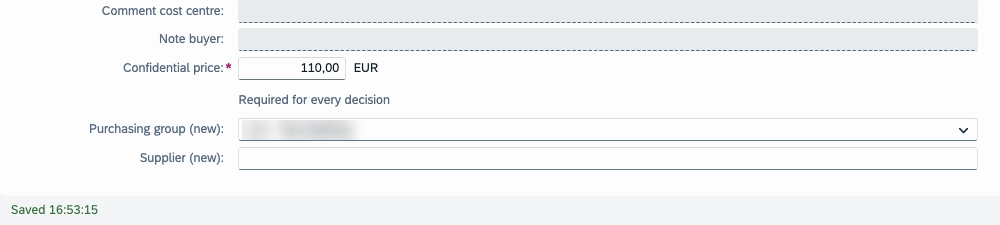
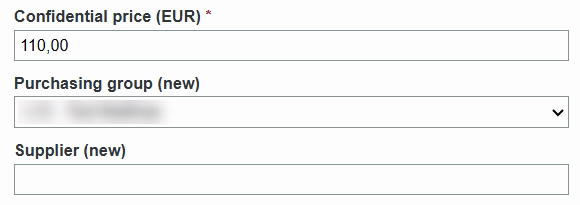
A price, a purchasing group, a supplier: fields per step, taken straight from the maintenance dialog. No app per workflow, no screen to build. The same fields in SAP GUI and Fiori, saved while typing, every change logged.
Fiori My InboxSAP GUI
click to enlarge
Input at the work item
The dictionary does the thinking
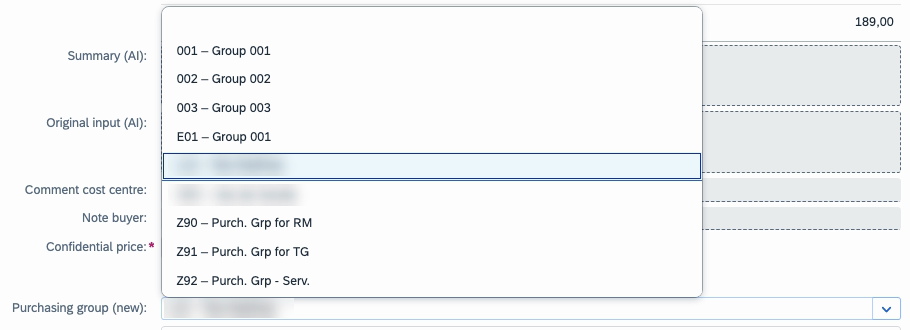
An amount shows the currency of the document. A purchasing group becomes a value list. A supplier is checked against the master data. A mandatory field blocks the decision – in every channel.
Value list from the check tableChecked at once
FioriSAP GUI
How it is configured
One row per field
1The data element – type, label and value list come with it
2Reference field: the currency of an amount
3Input or display, mandatory or not
4The documentation, right beside the view
Several approvers
Several approvers, one clear result
One rejection is enough, the first answer counts, or the majority decides: set on the step, not programmed.
The next step and the email follow the result. Two approvals and one rejection under “majority”: the approval email goes out, not the rejection.
Three approvers answer: Yes · Yes · No
All decideas before
No
V
Vetoone rejection ends the step
No
E
First decision countsthe others are closed at once
the first answer
M
Majority decidesties count as No
Yes
How it is configured
One column per approval step
1Per step: how several approvers reach one result
VVeto – the first rejection ends the step
EFirst decision counts – the others are closed
MMajority decides – a tie counts as No
–Left blank: everyone decides, as before
The email
The email says what the work item says
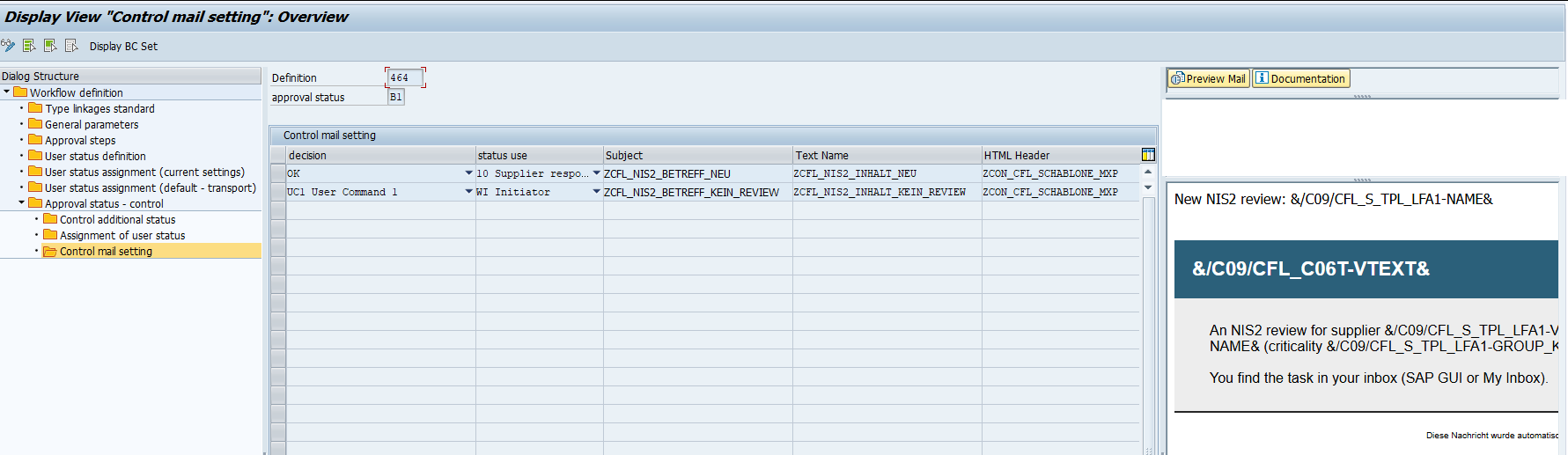
Every field from the template is available as a placeholder – and so is every value entered at the work item – with amounts and dates properly formatted. If required, the email is sent in the recipient’s language, and the preview in the maintenance dialog shows how it will look.
Mail control with preview
Your own app
One entry opens the right app
Whether a work item shows the standard view in Fiori My Inbox or an app of your own is now part of the configuration.
Work items already in progress can be switched over afterwards.
Your own app in Fiori My Inbox
How it is configured
One entry, and the inbox opens your app
1The app that should open
2Without an entry it stays the standard inbox
The documentation
The explanation is right beside the configuration
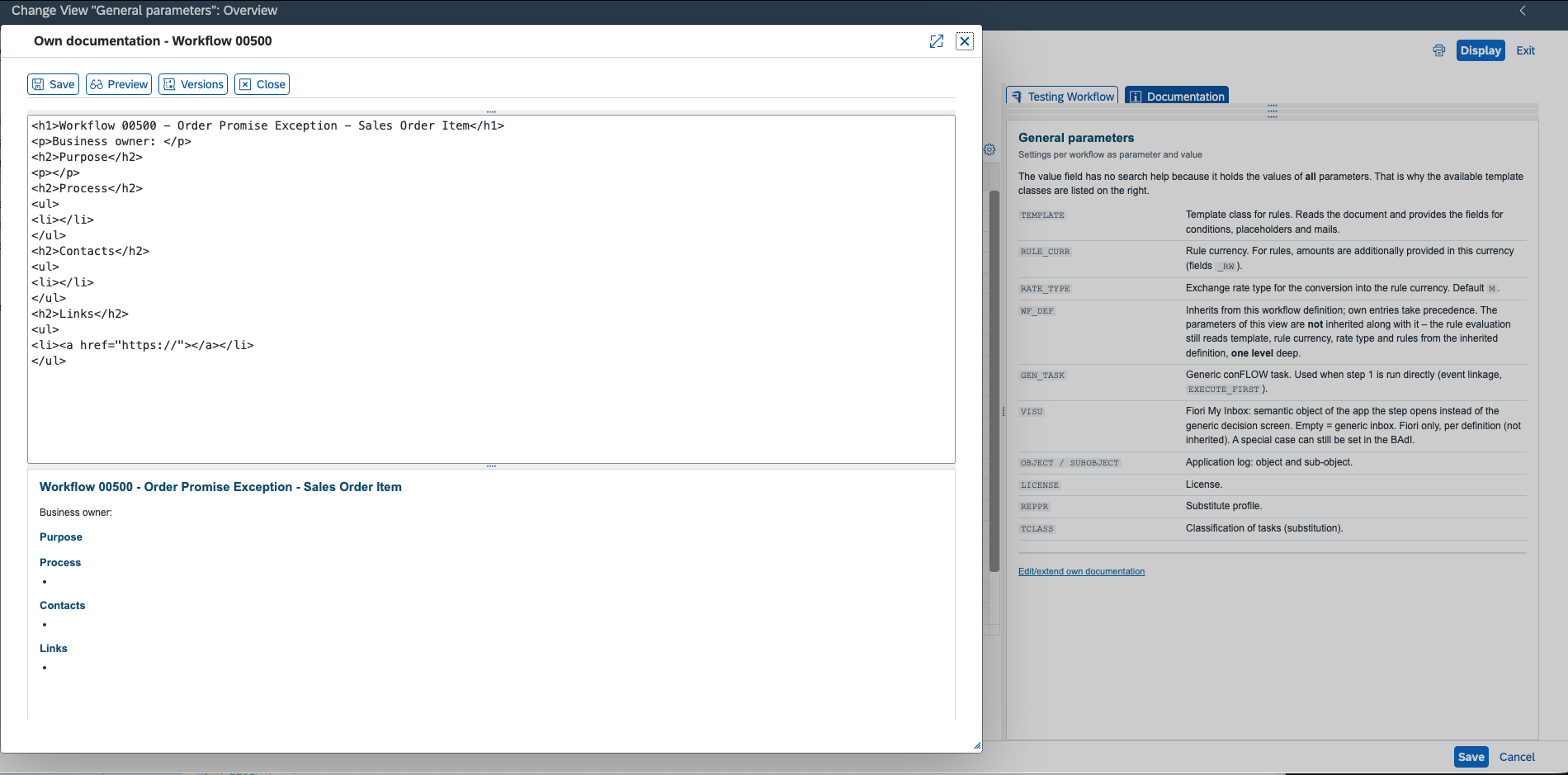
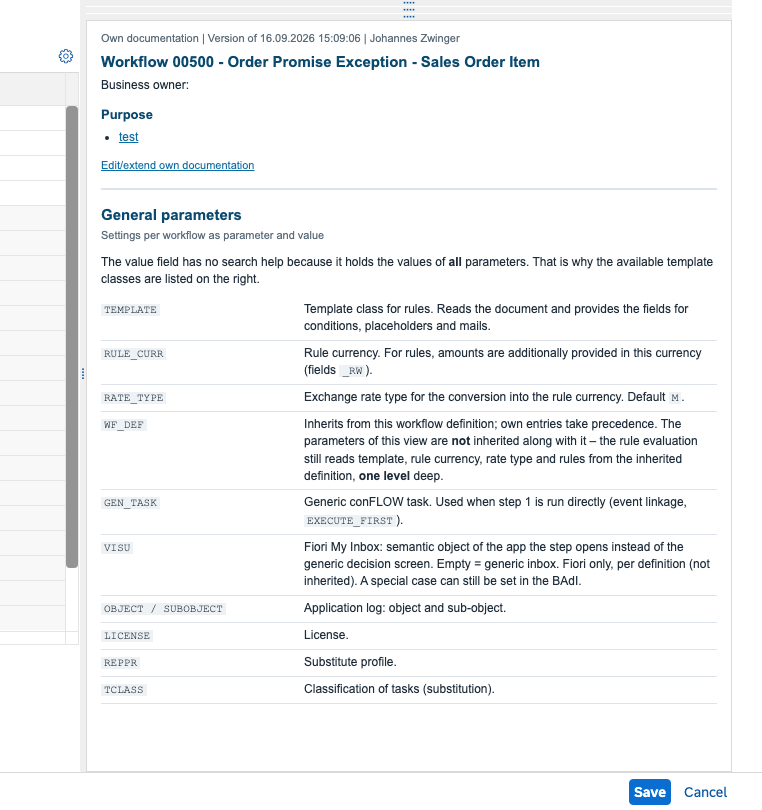
Every view in the maintenance dialog explains its fields. On top of that, every workflow can carry a description of its own: what it is for, who looks after it, what to watch out for.
That description sits at the very top. So whoever maintains the workflow later will find it.
Editing with previewYour own text on top
Running it
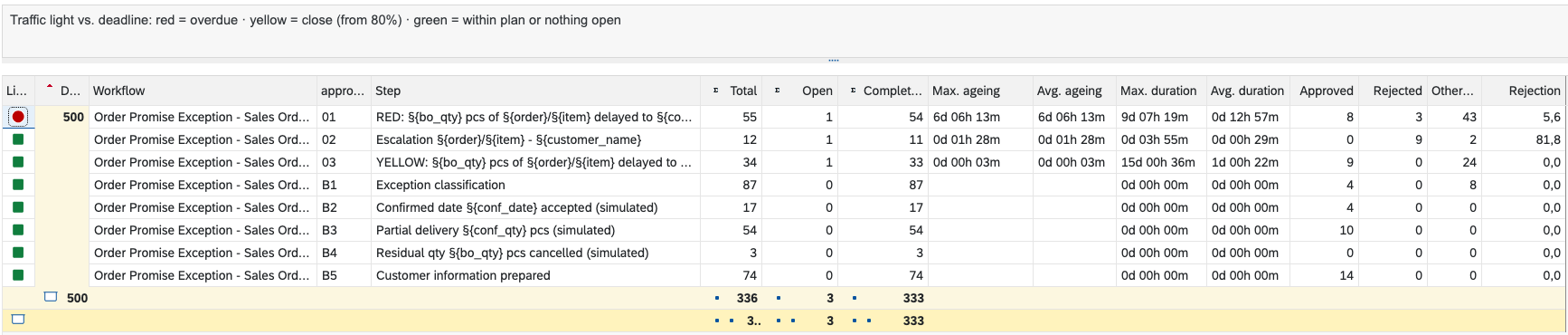
Seeing what is still waiting
Admin console · evaluation per step
336work items for this workflow, broken down by step
6d 06his how long the oldest work item has been waiting – the indicator shows it in red
81.8 %of the escalations end in a rejection
Part two · A real case
And in real life? NIS2 supplier review
The same building blocks, one afternoon, a process that runs end to end.
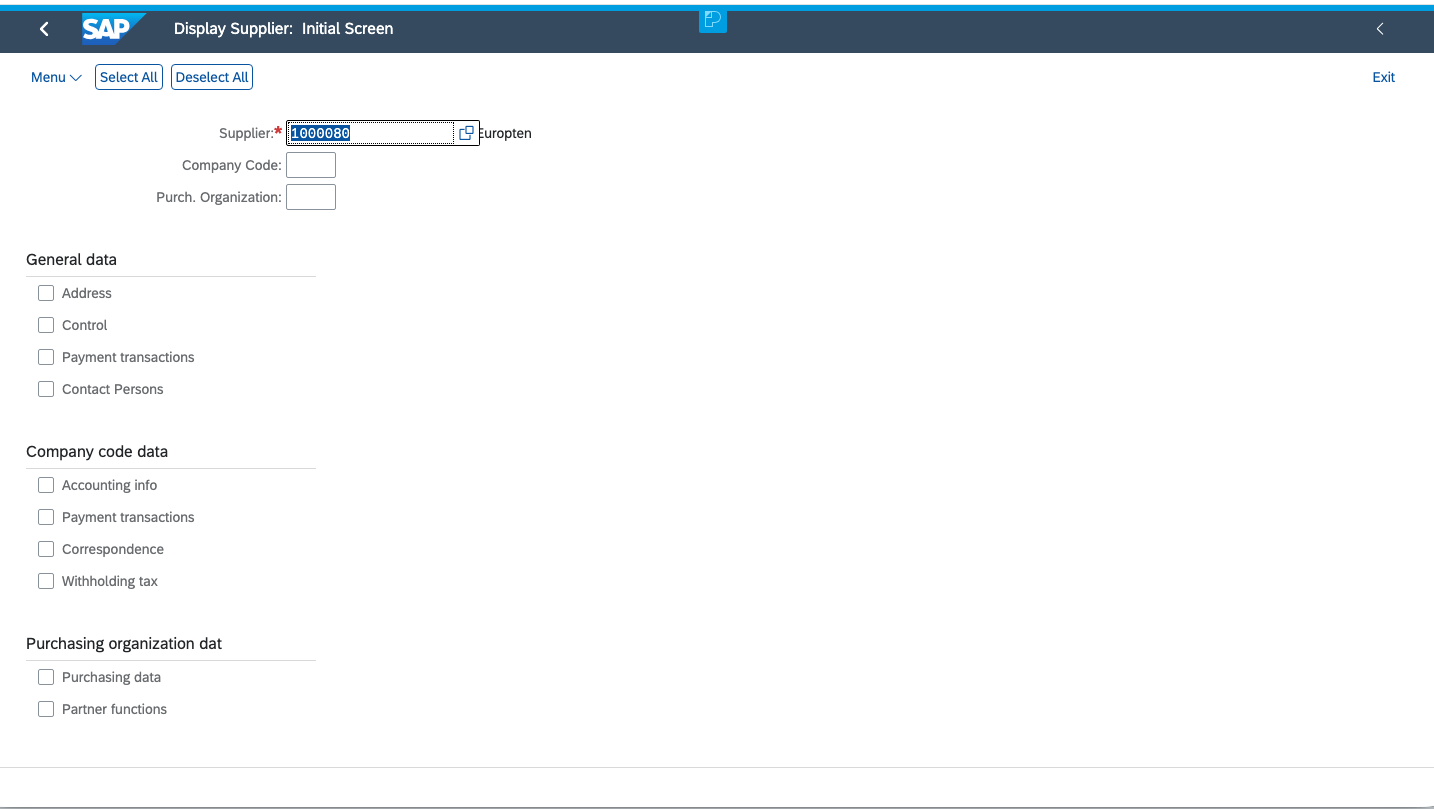
Everything from this point on comes from an actual run in a real system. Every screenshot was checked against the database, not just the screen.
The task
Review each supplier as deeply as its criticality requires
Stage 1
Supplier responsibleChecks NIS2 relevance and the master data. Every reviewed supplier passes this stage.
Stage 2
Responsible buyerBusiness relationship, contracts, dependency. Only for suppliers rated NIS2-2 or higher.
Stage 3
Security teamCertificates, audits, incidents. Only for critical suppliers rated NIS2-3.
Each stage records a result and a note. The final result is written back to the supplier master data.
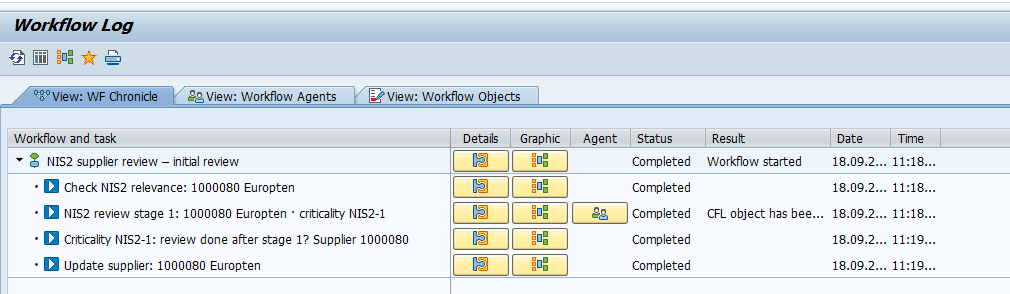
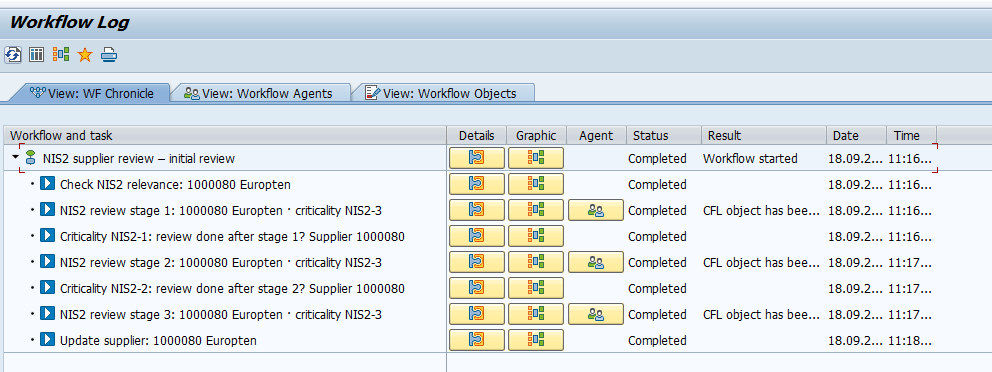
The case decides
One definition, three possible paths
Not relevant · no task at all
NIS2-1 · one stage
NIS2-3 · three stages
The branch is controlled by a condition in a background step, not by custom code. Change the field on the supplier and the same workflow behaves differently.
In the inbox
The task explains itself
Title with supplier number, name and criticality. Below it are the supplier data, the task at this stage and what the decision means – all from the maintenance dialog.
The text comes from a standard text (SO10) with placeholders; the template fills them from the supplier.
One click away
The document is one click away, not just described
Every task carries its document
One click opens the supplier
Which document, and what it is called, comes from two entries – the template and the object text.
Deciding
Result and note, captured where the decision is made
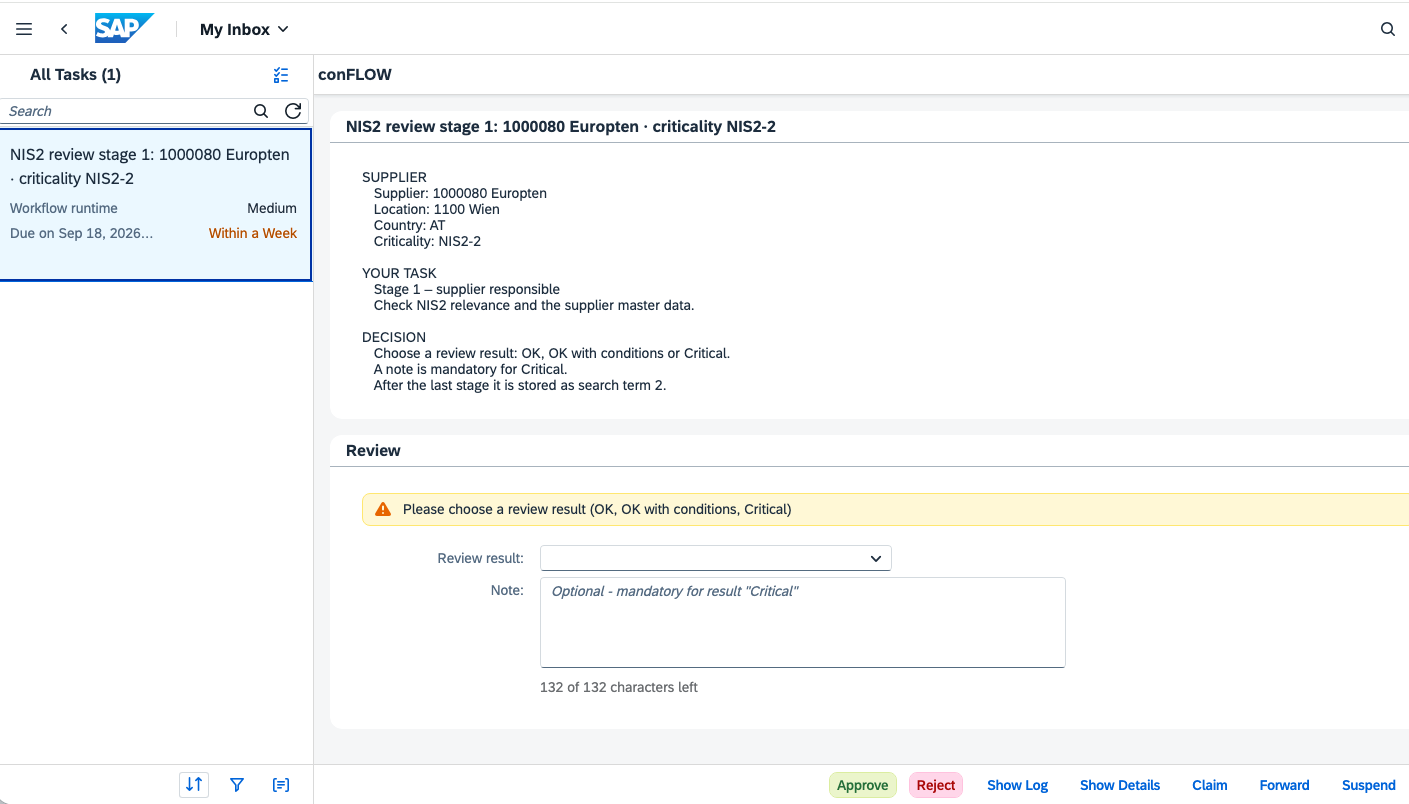
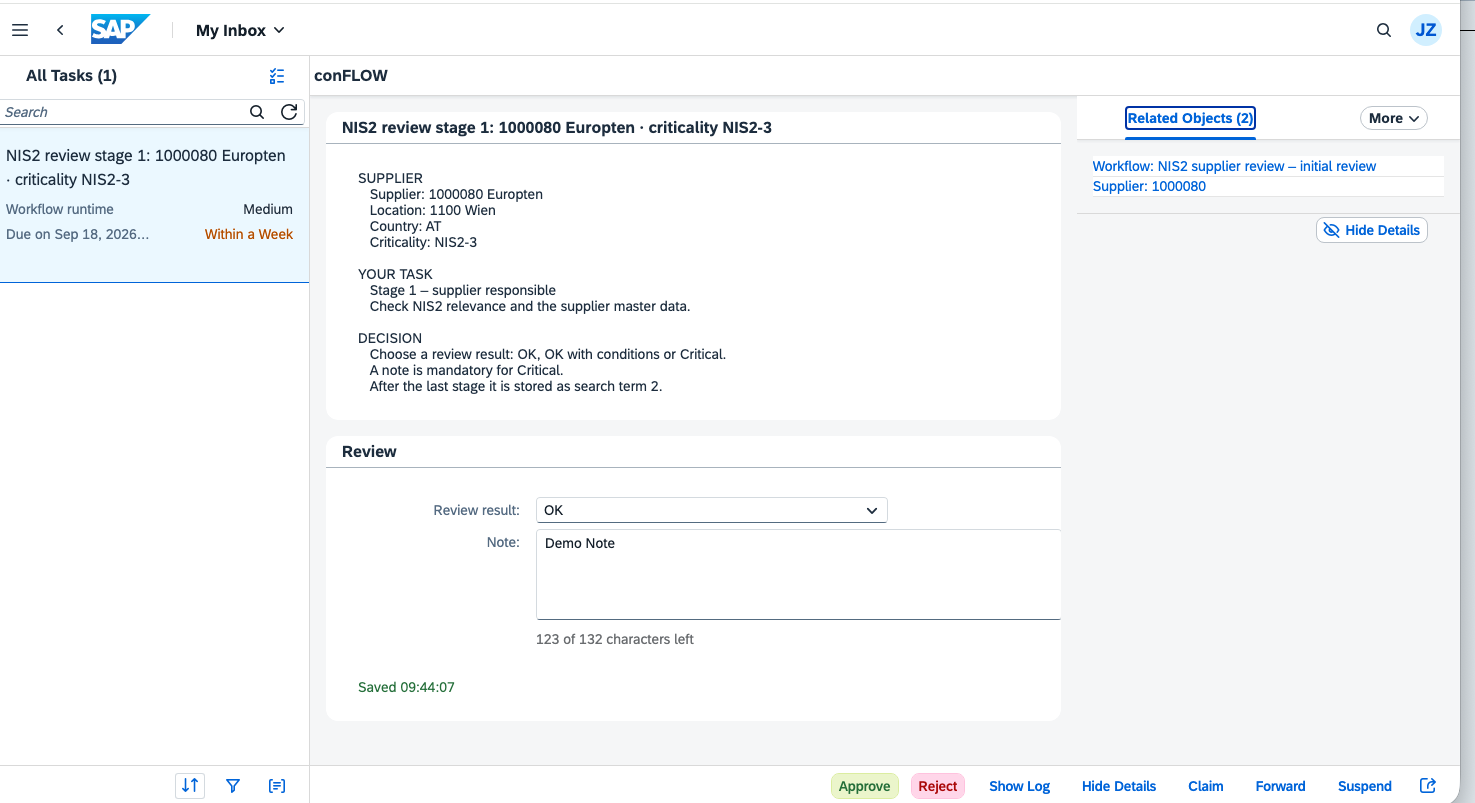
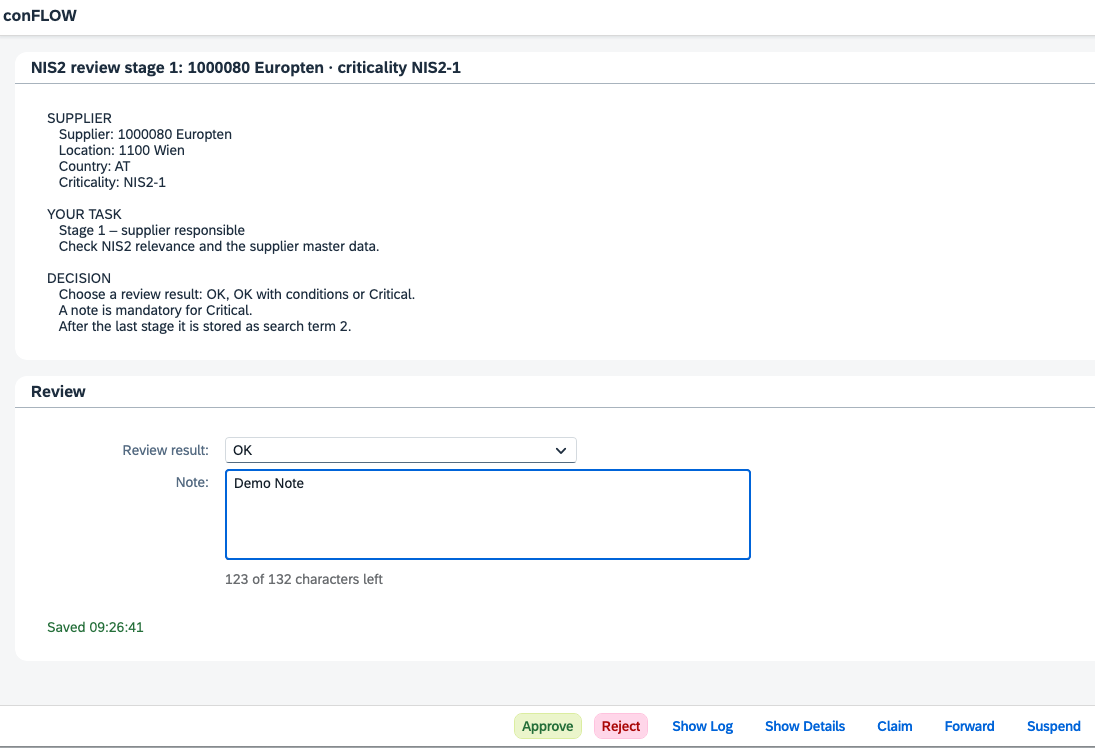
No second transaction, no separate attachment. The reviewer picks a result and types a note, which is saved while typing. Today the panel is a field set: a few rows in the maintenance dialog.
The same panel and the same data are available in SAP GUI. Every change is logged with user, time and channel.
Nothing slips through
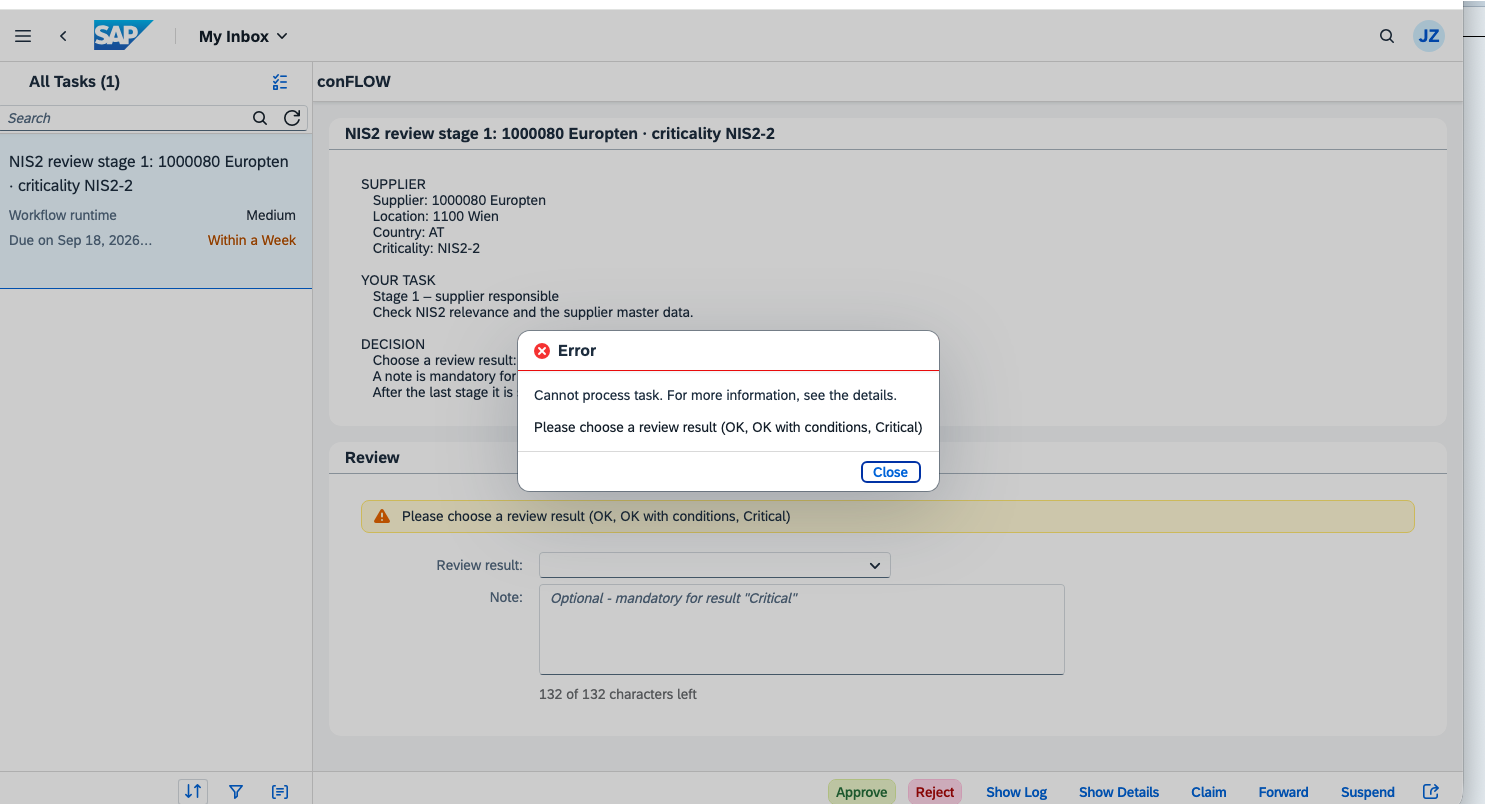
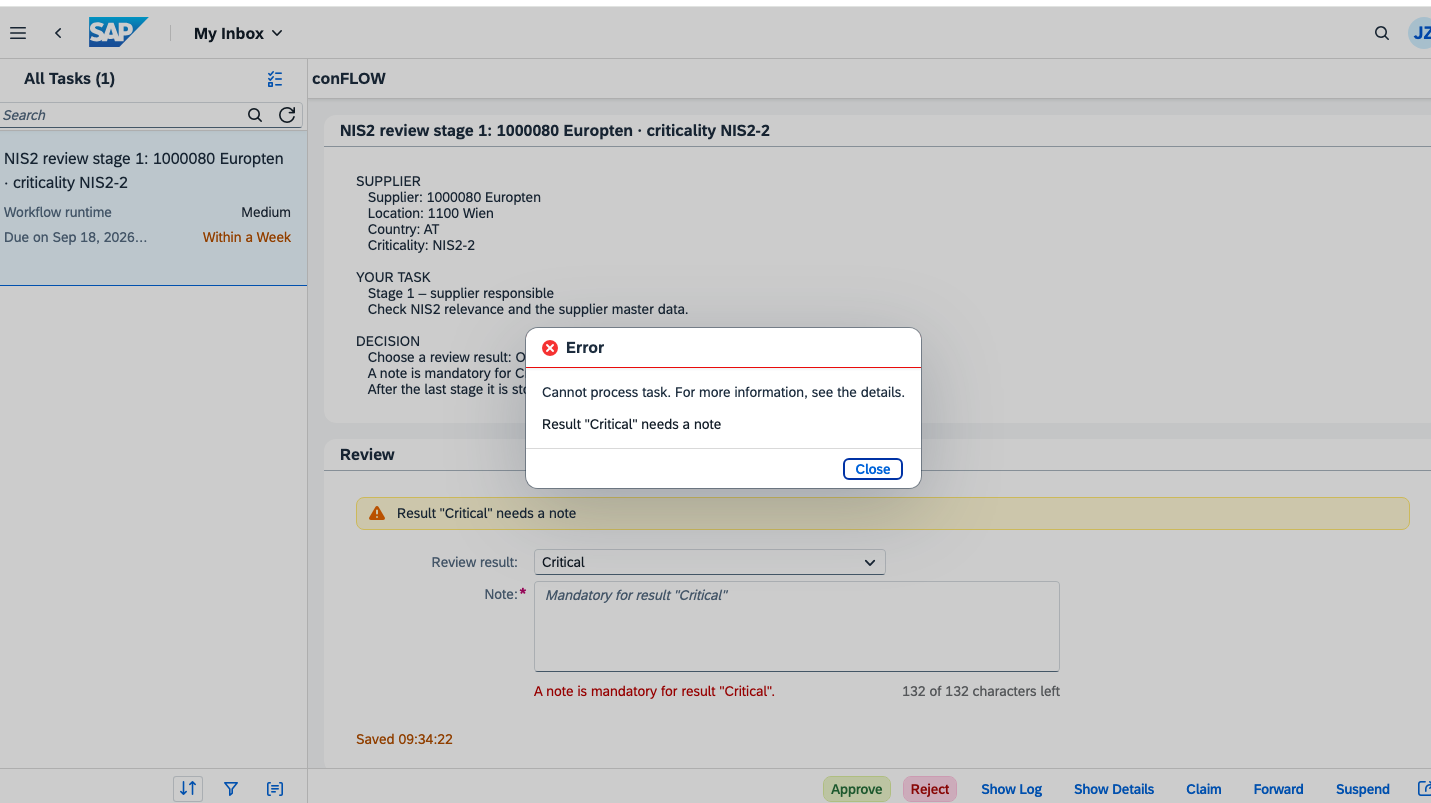
Approving without a result is not possible
No result · no approval
Critical · a note is required
The check is implemented in one place and applies to every channel: Fiori, SAP GUI and any API call.
Stage after stage
Each stage records its own result
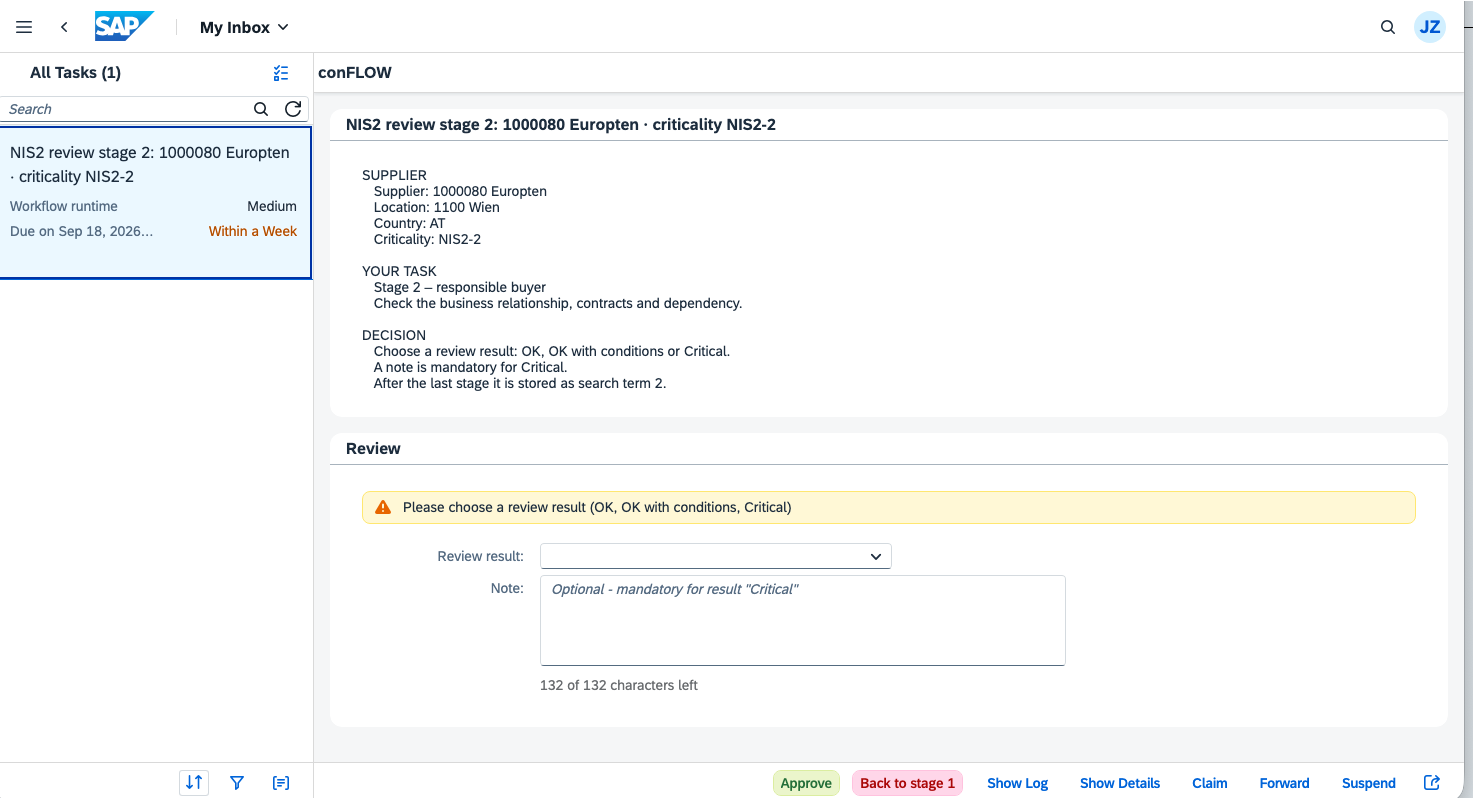
Stage 2 does not inherit the result entered at stage 1. The panel starts empty, and the buyer makes their own assessment.
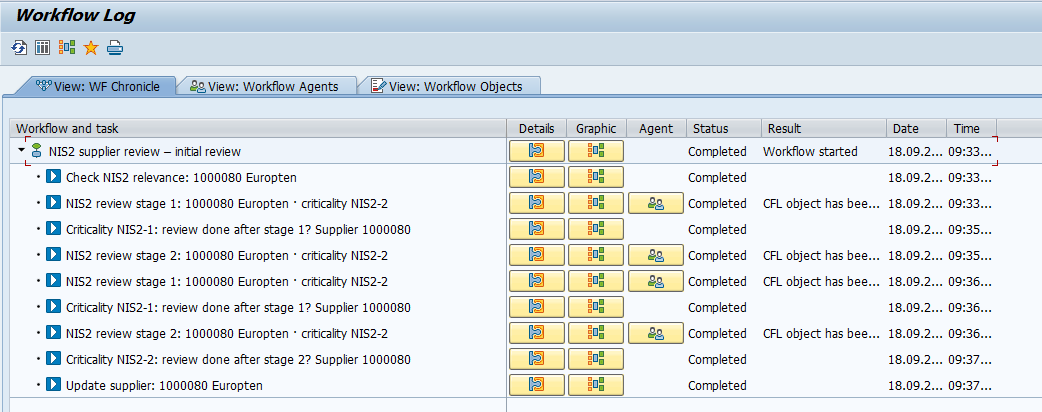
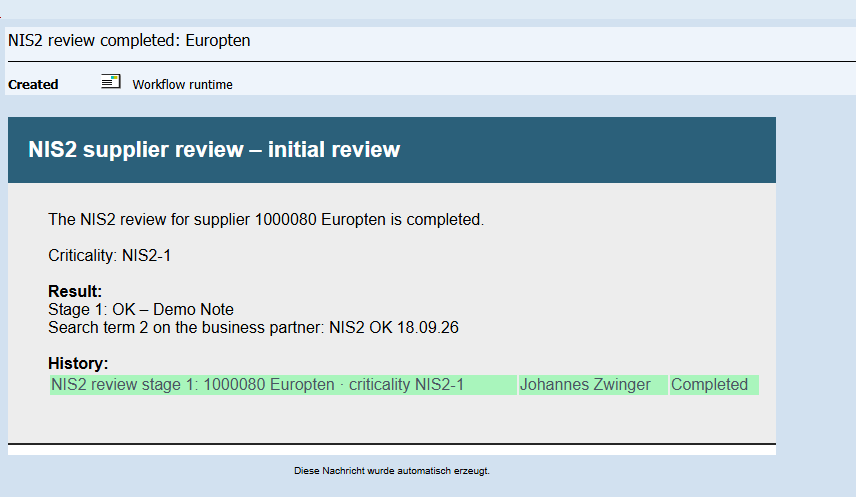
Nothing is lost: the log keeps every stage, and the completion email lists the result of each stage.
Stage 2 · nothing prefilledThe whole path, step by step
When a reviewer is not convinced
Back to the previous stage, with a reason
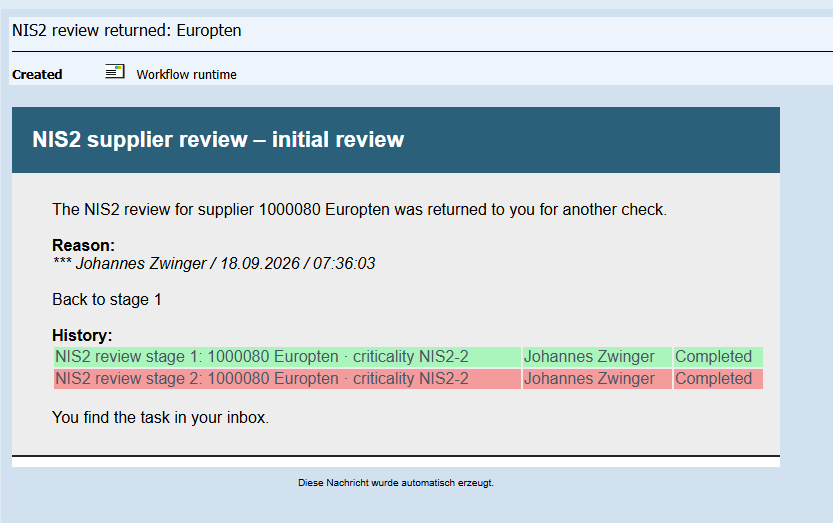
The reason is mandatory, not optional
Stage 1 reopens with its entries intact
The task goes back to the agents of stage 1, with everything they entered. Nobody has to start again from scratch.
Four eyes
One person, one stage
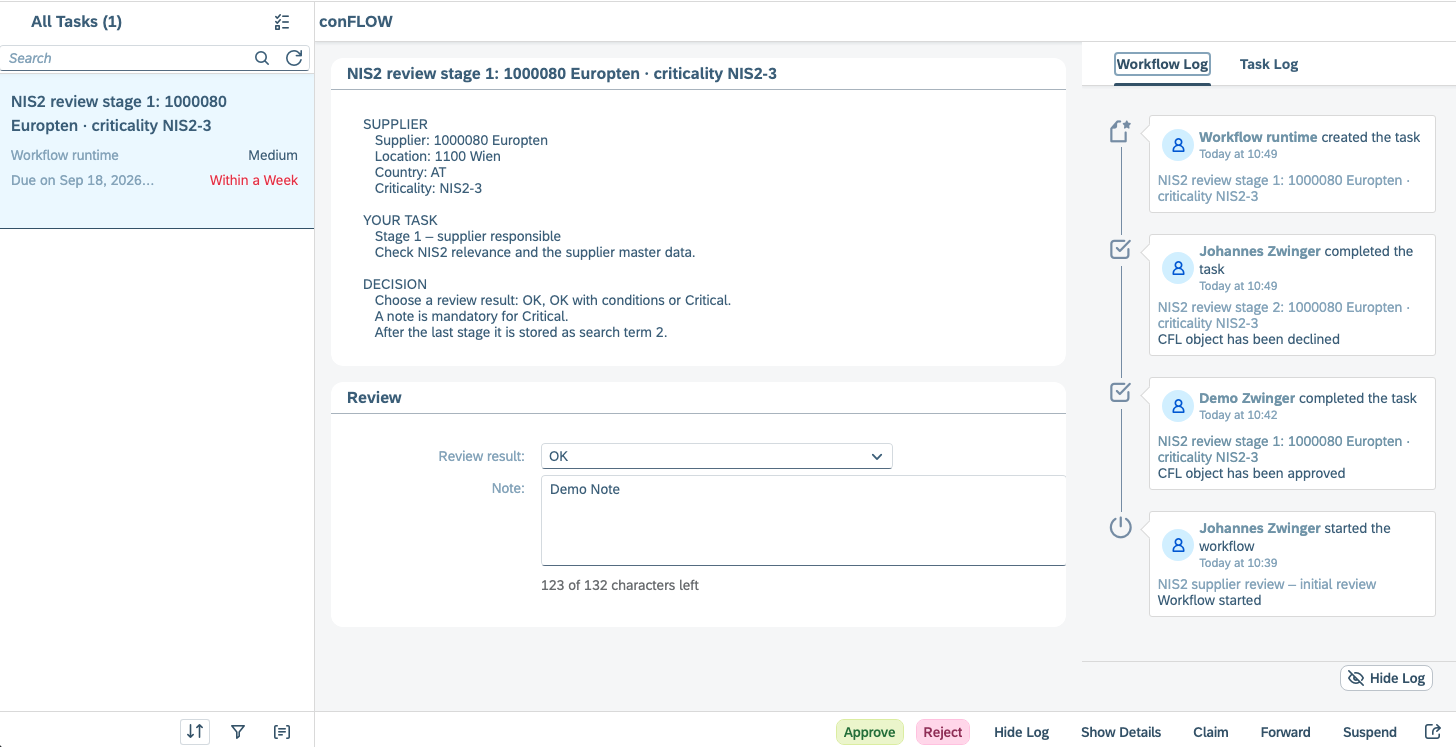
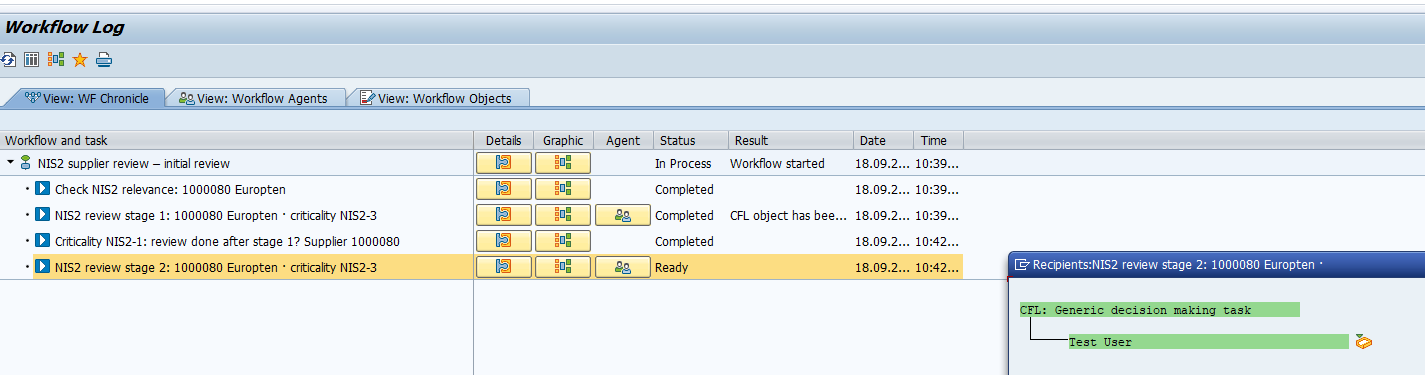
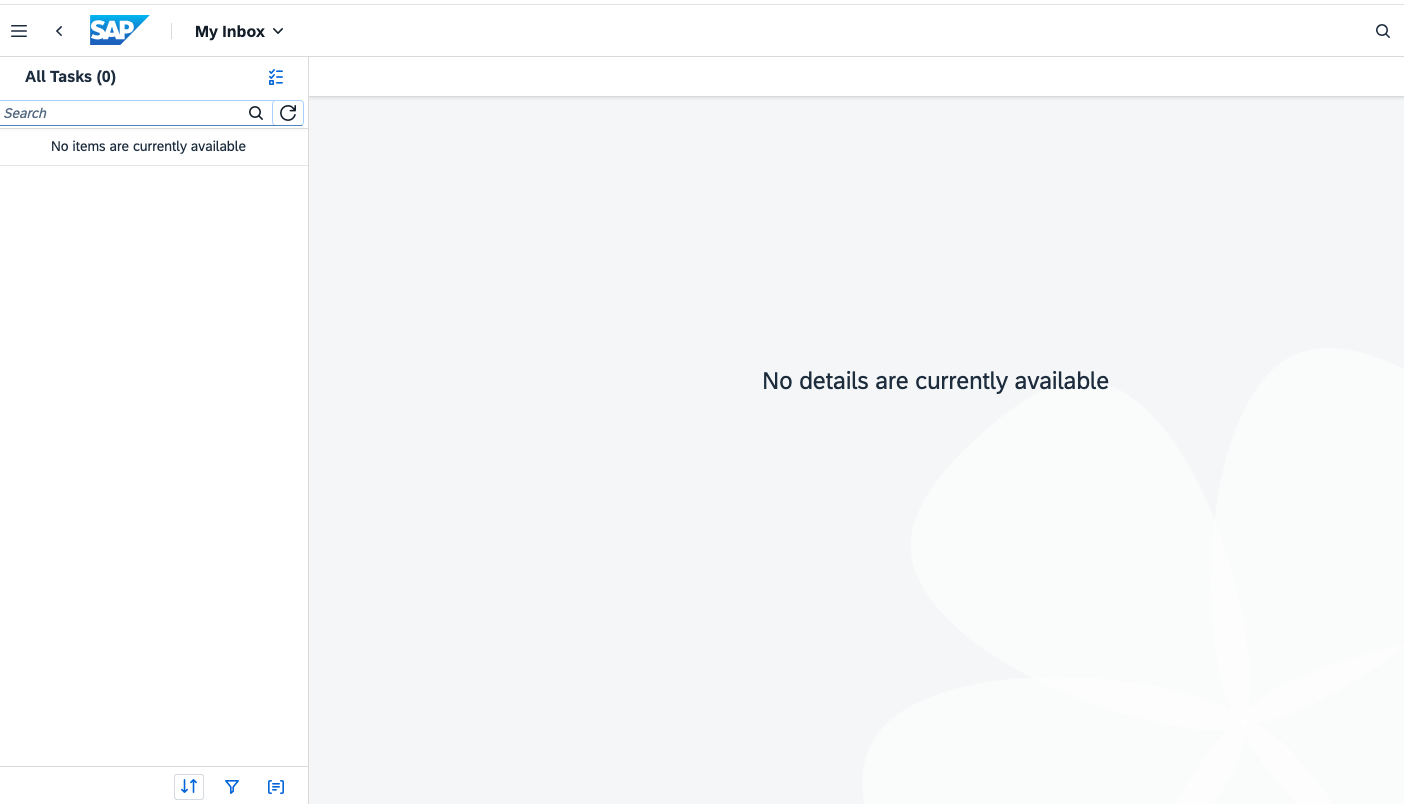
The initiator of the review never receives their own task. And anyone who decided at stage 1 is excluded from stage 2 – even if they are a named agent there.
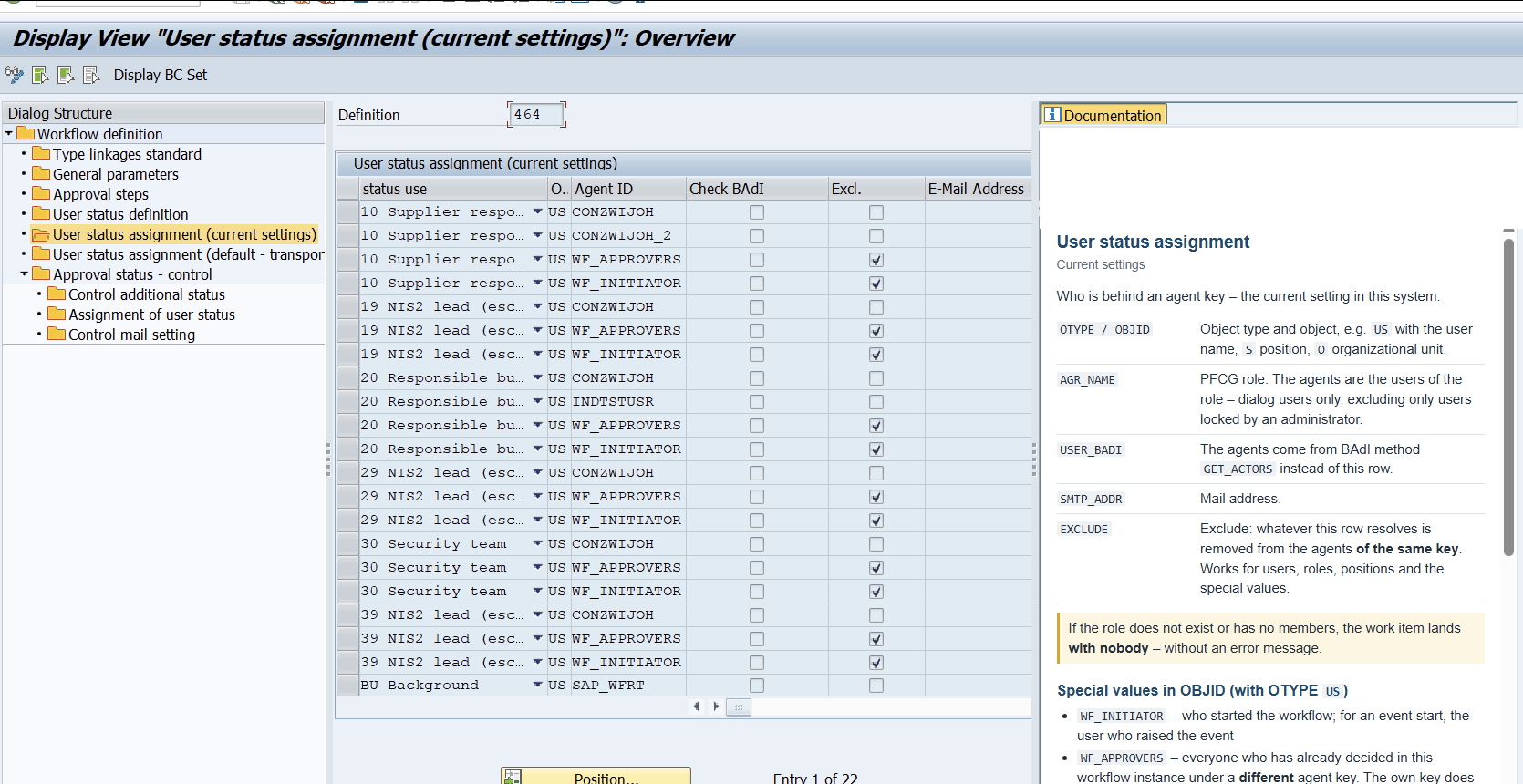
Two rows in the agent table, no code: WF_INITIATOR and WF_APPROVERS, both marked as excluded.
Stage 2 · one recipient leftThe initiator · no task
When nothing happens
First a reminder, then the NIS2 lead
Deadline passed · reminder, higher priority
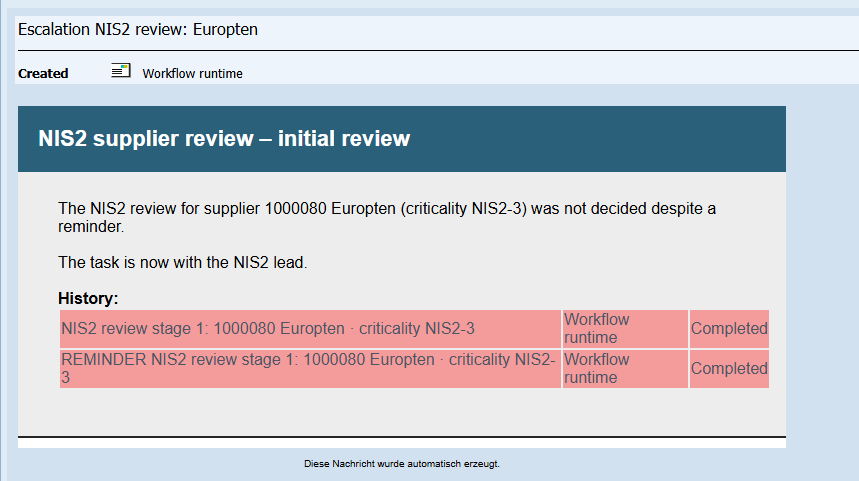
Still no response · escalation to the NIS2 lead
Deadline, follow-up step and recipient are three fields. Entries already made are kept – the lead sees the review in progress, not a blank form.
Completed · result per stage
The emails
Everyone is notified in their own language
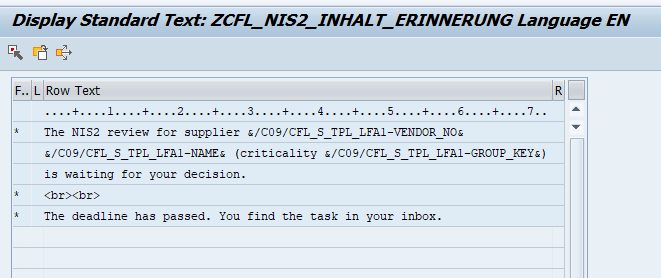
New task, reminder, escalation, returned, rejected, completed, failed. Seven situations, each with its own text, including the reason and the history.
The language follows the recipient, not the sender: the same rule sent one email in German and one in English, in the same second.
Returned · reason and history
The same rule, at the same moment
Everyone reads it in their own language
Two recipients of the same email rule, two languages. The language follows the recipient – not the user or background job that triggered the email.
Subject and body come from standard texts. If a translation is missing, the email goes out in the original language rather than empty.
What it is all for
The result goes back to the supplier
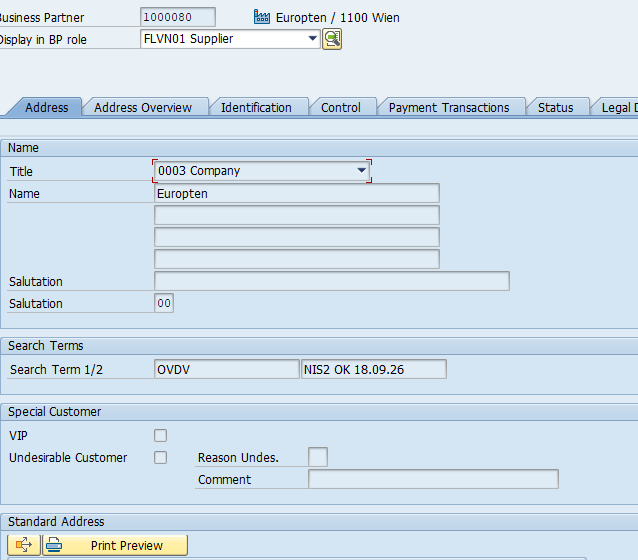
When the last stage is done, a background step writes the result to the Search Term 2 field of the business partner: NIS2 OK 18.09.26.
From then on, anyone who works with the supplier can see it – in a list, in a report, in the next audit. Nobody has to open the workflow log.
When something goes wrong
Silence is the worst outcome
Here: the initiator is notified
The log records exactly what went wrong
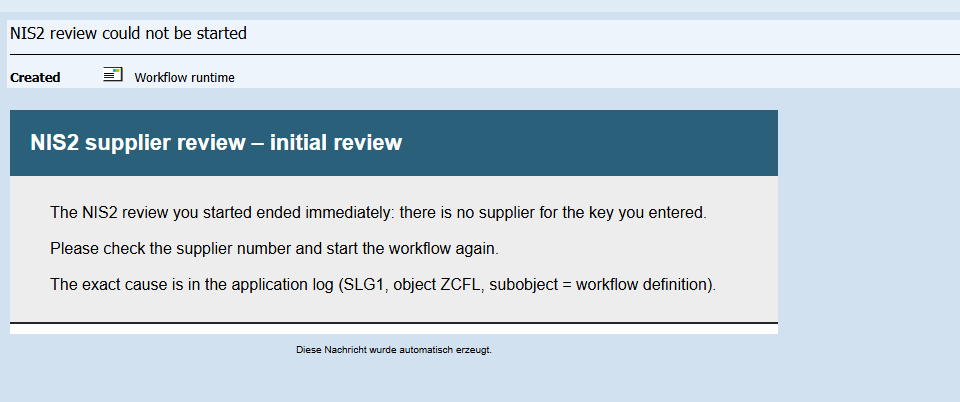
A locked business partner, an invalid key, a missing result: the workflow ends in a named end status, writes the reason to the application log and notifies the people responsible.
This is how it is set up
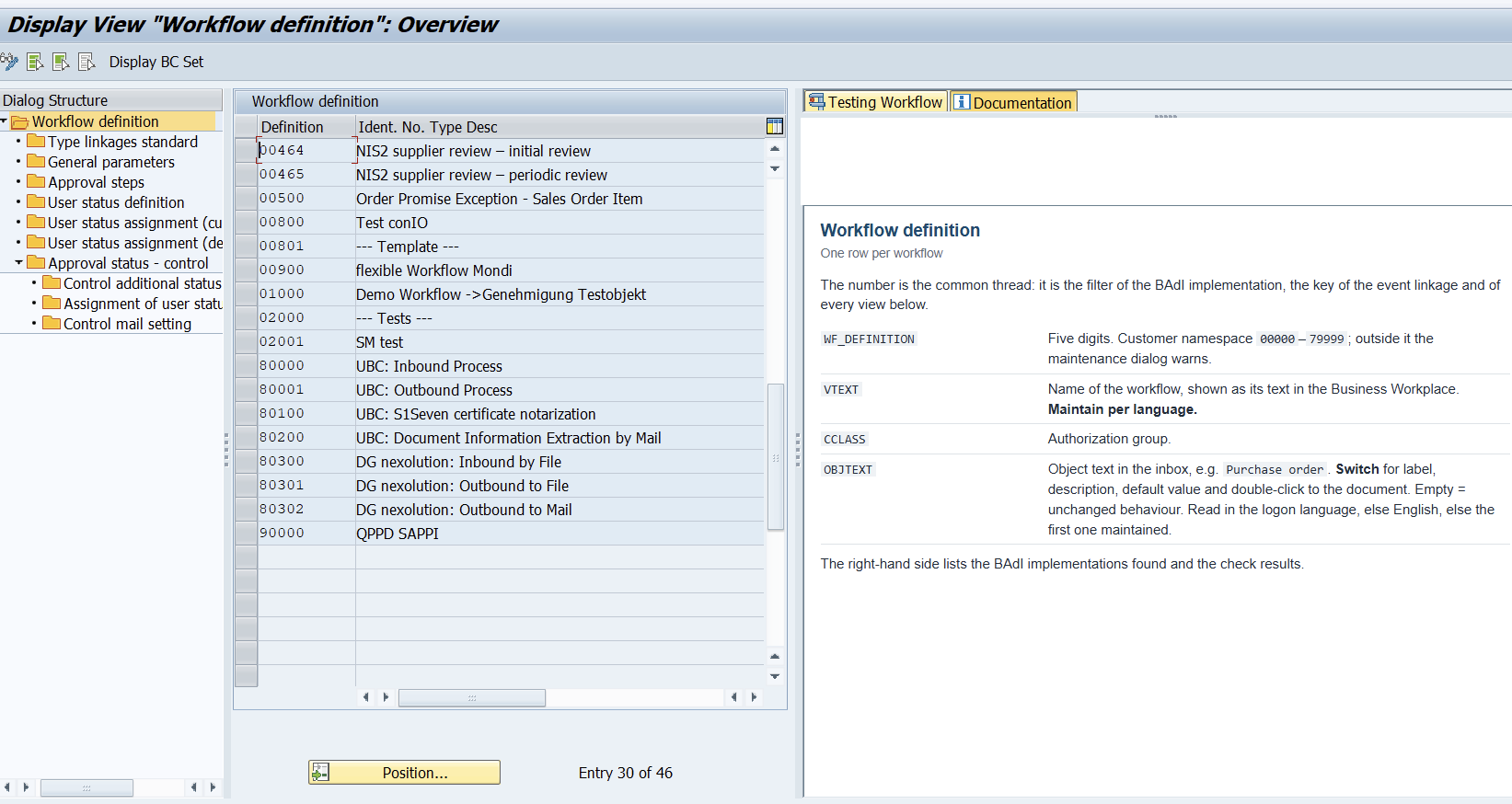
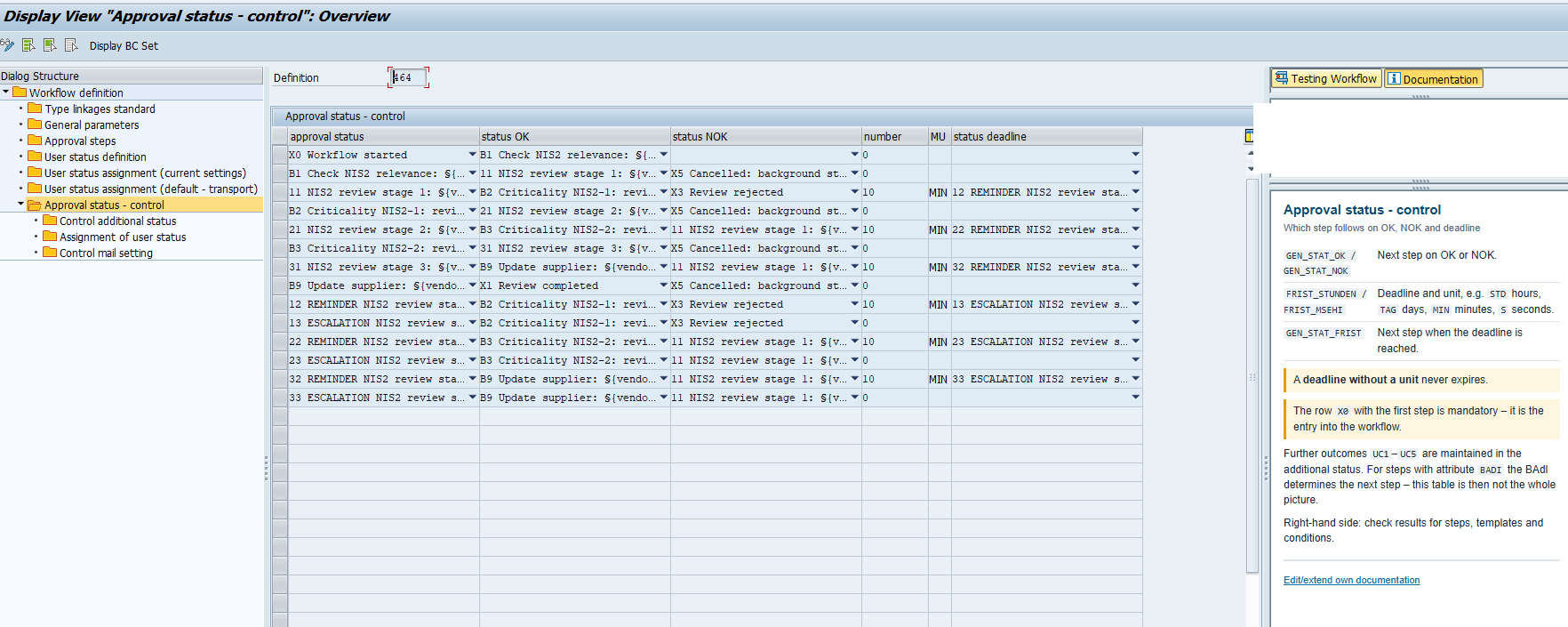
One row per workflow – its number links everything else
1Both reviews sit alongside every other workflow in the system
2The documentation of the view is right beside it
This is how it is set up
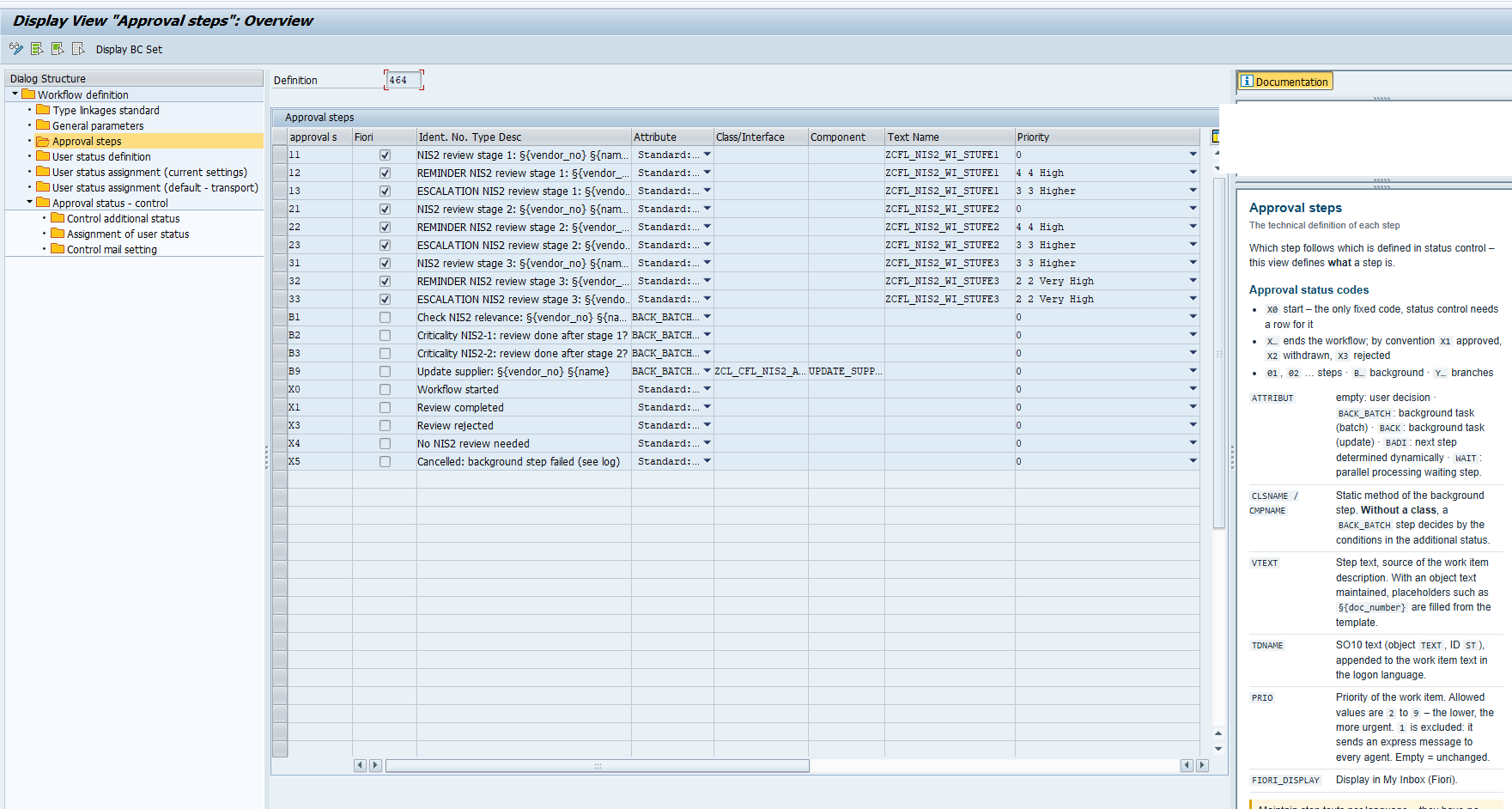
The steps, the deadline, the follow-up
1Empty: a person decides. BACK_BATCH: the system does
2Priority per step: the reminder outranks the first task
Right next to it: the documentation of the view. It explains the fields while you are in them.
This is how it is set up
Reminder after ten minutes, escalation after twenty
1Deadline and unit – minutes here, days in practice
2The step the deadline leads to, with its own agents
This is how it is set up
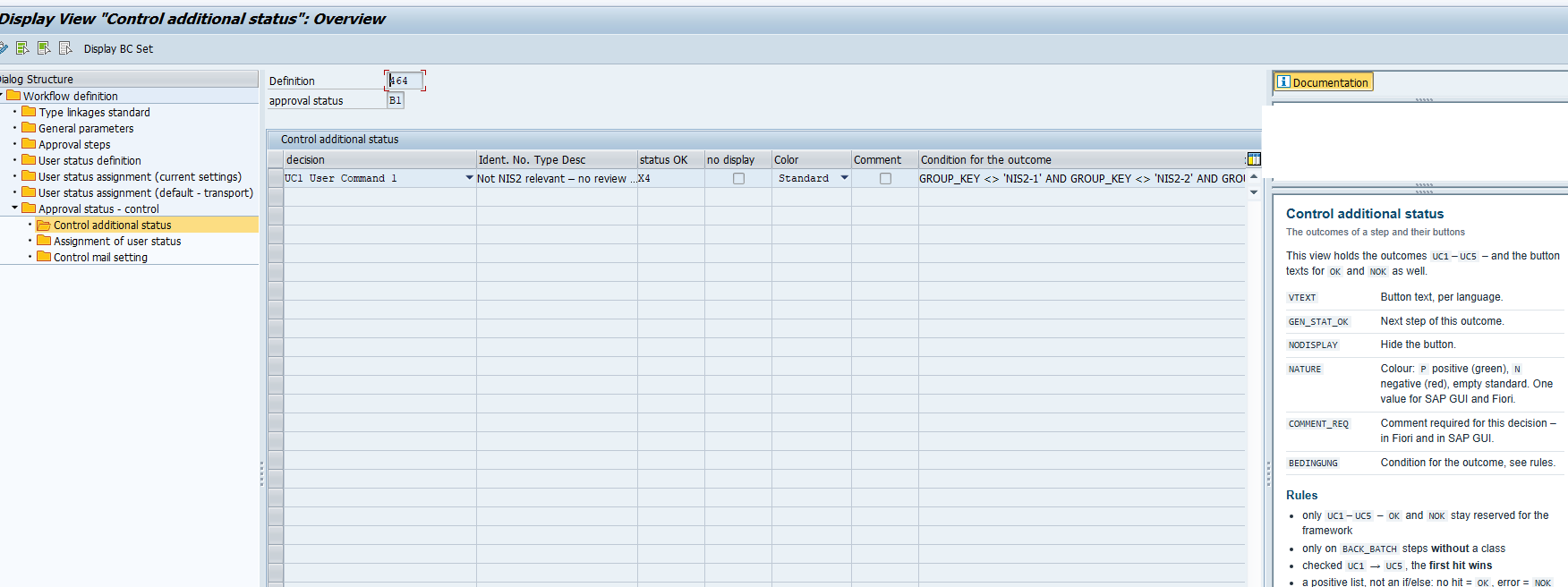
The branch is a condition, written exactly as the value appears
1The outcome and where it leads
2The condition on the fields the template provides
This is how it is set up
Two rows exclude people – no code, no role concept
1The agents behind each key
2Excluded: the initiator, and anyone who decided another stage
This is how it is set up
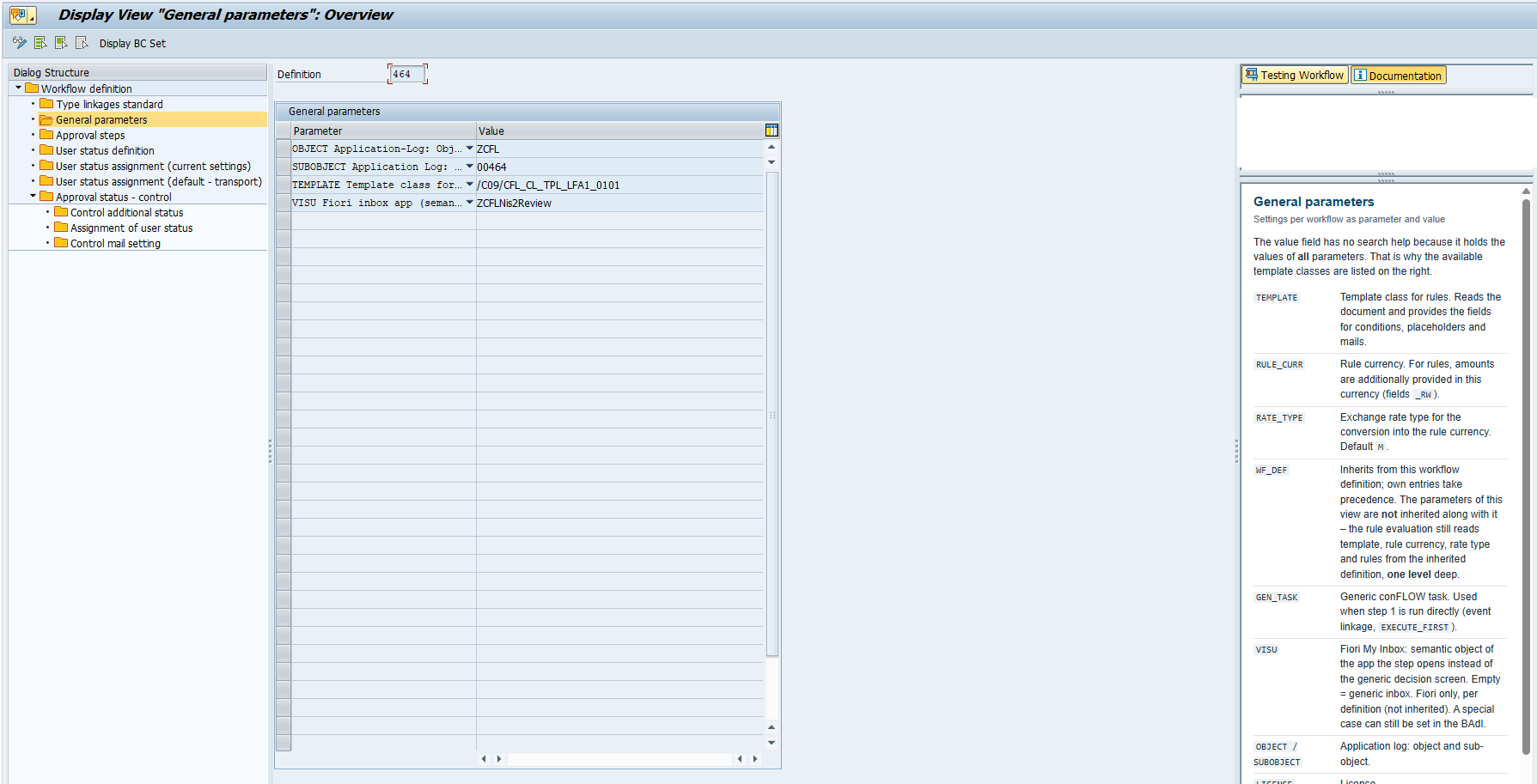
Which document is read, and which app opens it
1The template: it reads the supplier and provides the fields
2The app the task opens in Fiori My Inbox – empty means the standard view
This is how it is set up
One row per situation – step, outcome, recipient, text
1Which outcome of which step sends an email, and to whom
2Subject and body are standard texts, with a built-in preview
This is how it is set up
A standard text with placeholders – no template engine, no code transport
1Document fields, filled in when the email is sent
2Paragraphs are plain HTML, so the email reads like an email
What it took to build
Almost all of it is configuration
Configuration: steps, agents, four eyes, rules, deadlines, colours, comments, input fields, emails, Fiori, the logCode
Built as code for this case – now configuration
The input panelResult and note in the work item, plus a check that blocks approval without a result. First a class written for this case; today a field set – a few rows in the maintenance dialog, the check included. Only a rule that depends on another field (a note only when the result is critical) still belongs in a field exit.
Developed for this case
The write-backOne background step that writes the result to the business partner. Fifteen lines of business logic; the rest is robust error handling.
What is left is small and self-contained – exactly the kind of exception the BAdI is there for.
Where that leaves you
Configuring is quick. Changing your mind is cheap.
A process like this takes an afternoon, not an entire project. And adapting it later takes almost as little effort as building it – because it is configuration, not development.
Start smallOne step, one email. Stages, deadlines and rules come later, when the process asks for them.
See it, try itEvery setting is visible in the maintenance dialog, with its documentation beside it and the log to show what happened.
Keep the BAdI for exceptionsThe BAdI has not gone anywhere. It is simply no longer the first thing you reach for.
 SAP GUI
 Fiori My Inbox
 SAP GUI
 Value list from the check table
 Checked at once
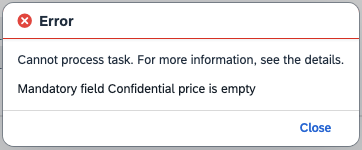 Fiori
Fiori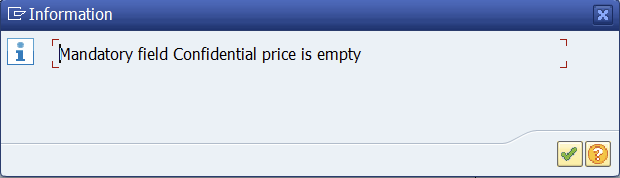 SAP GUI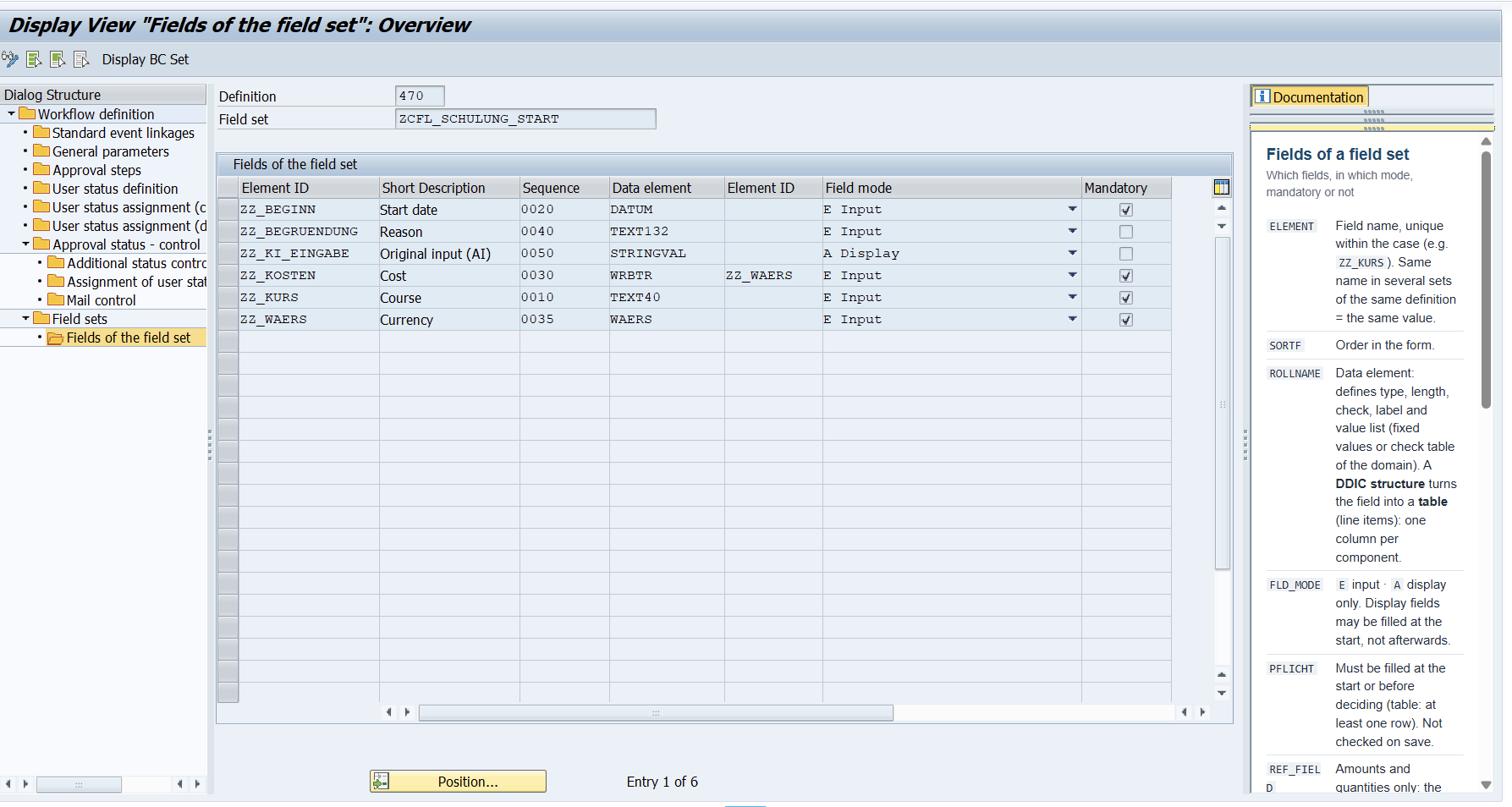

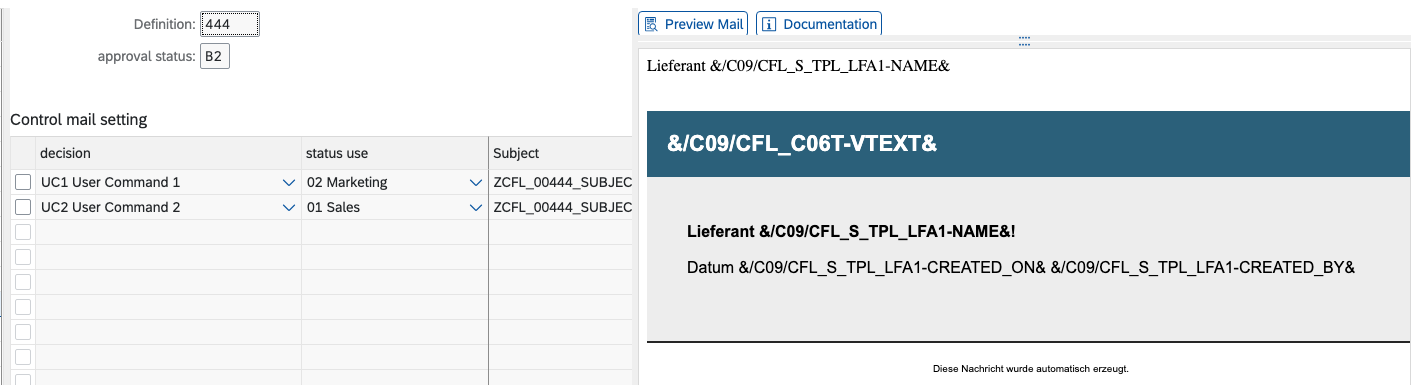 Mail control with preview
 Editing with preview
 Your own text on top
 Admin console · evaluation per step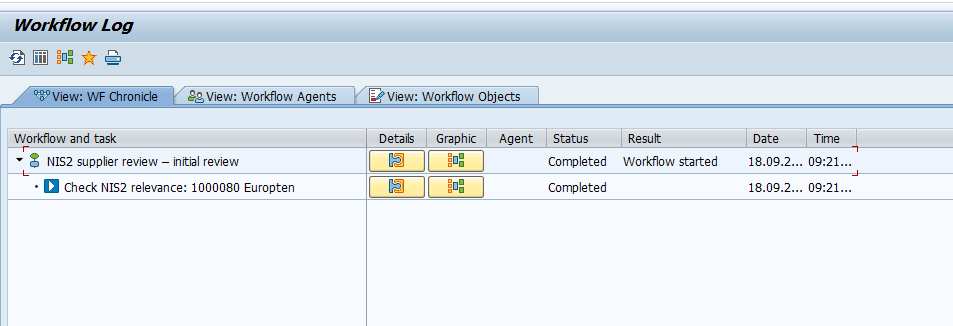
 Stage 2 · nothing prefilled
 The whole path, step by step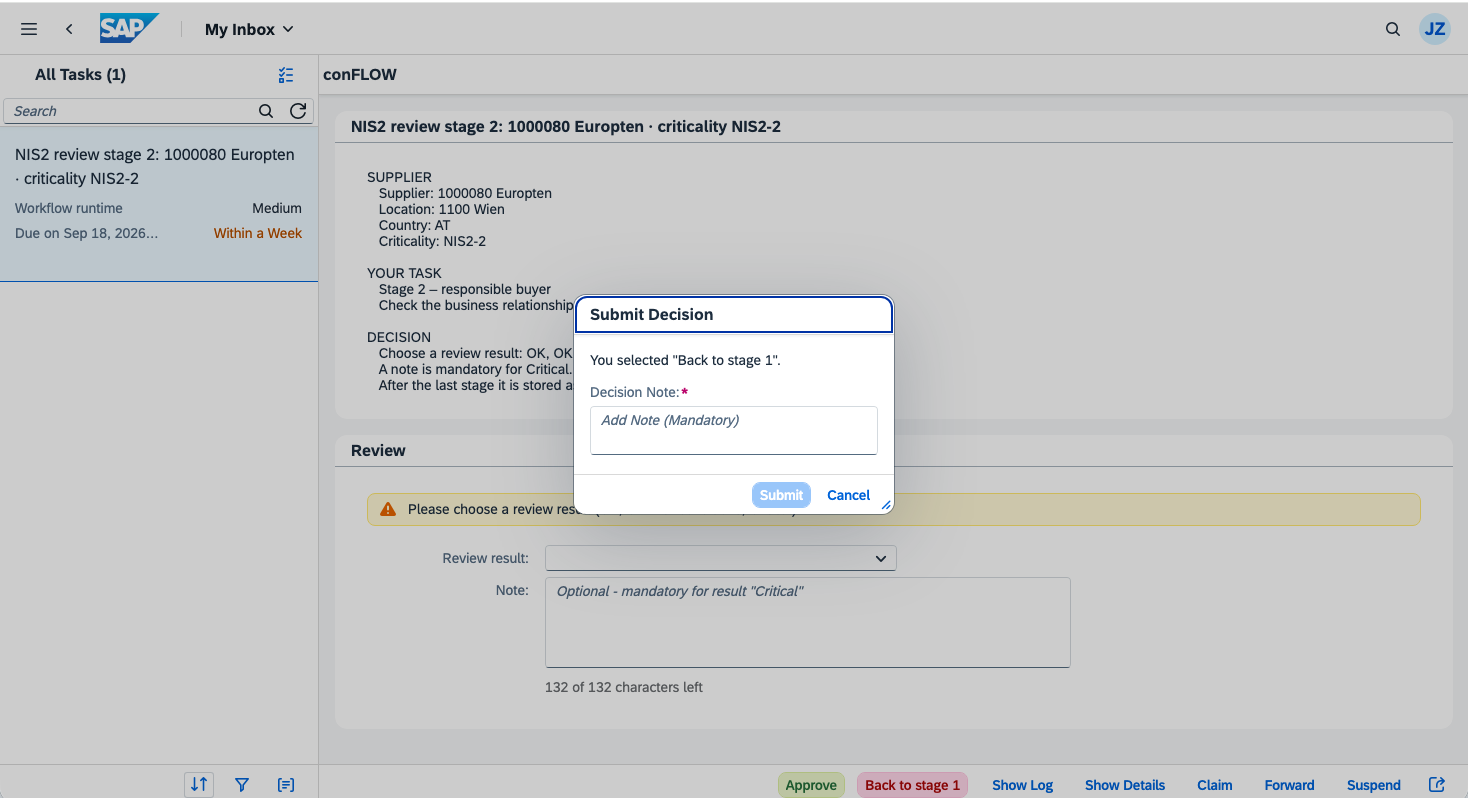
 Stage 2 · one recipient left
 The initiator · no task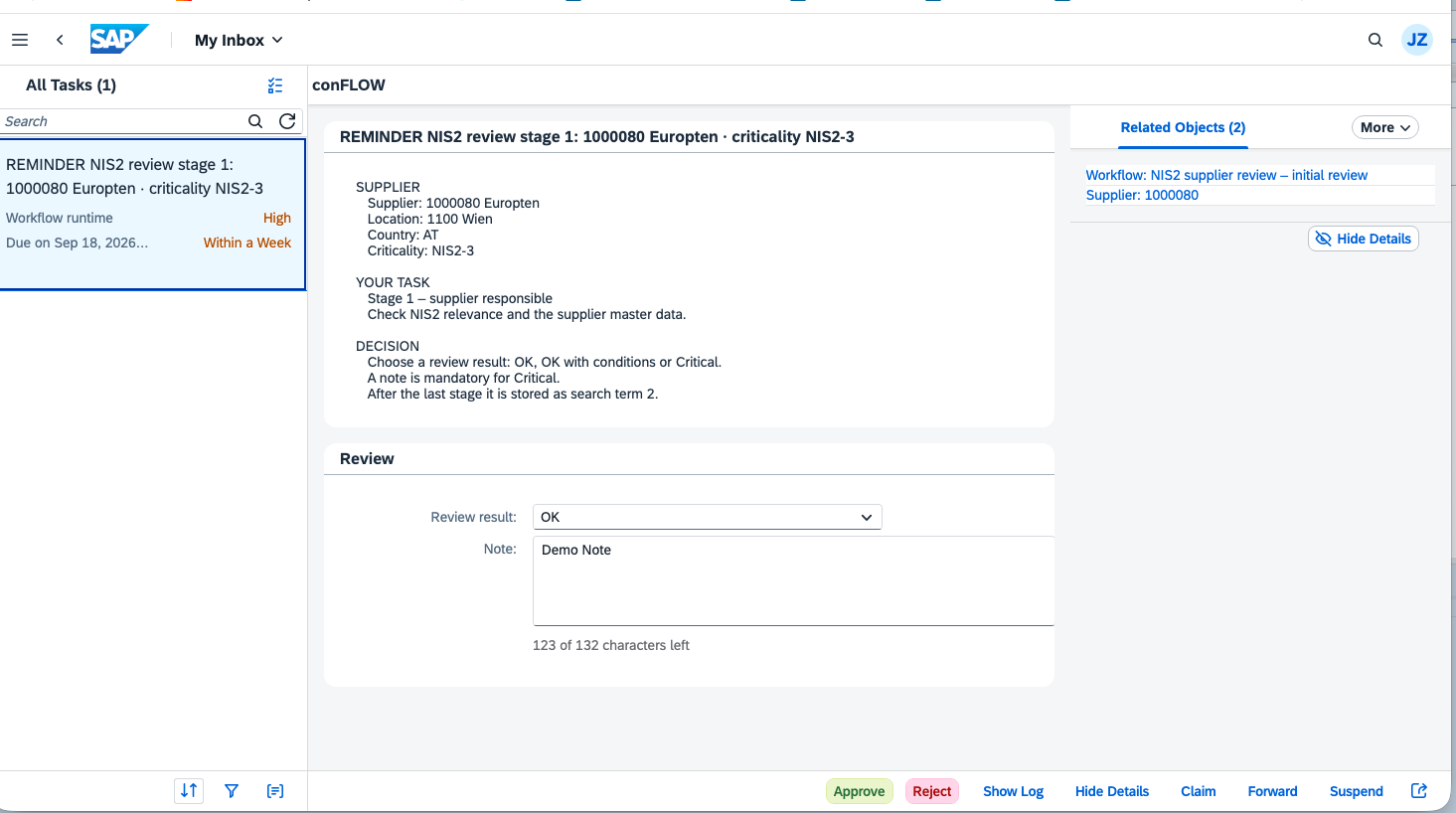
 Completed · result per stage
 Returned · reason and history